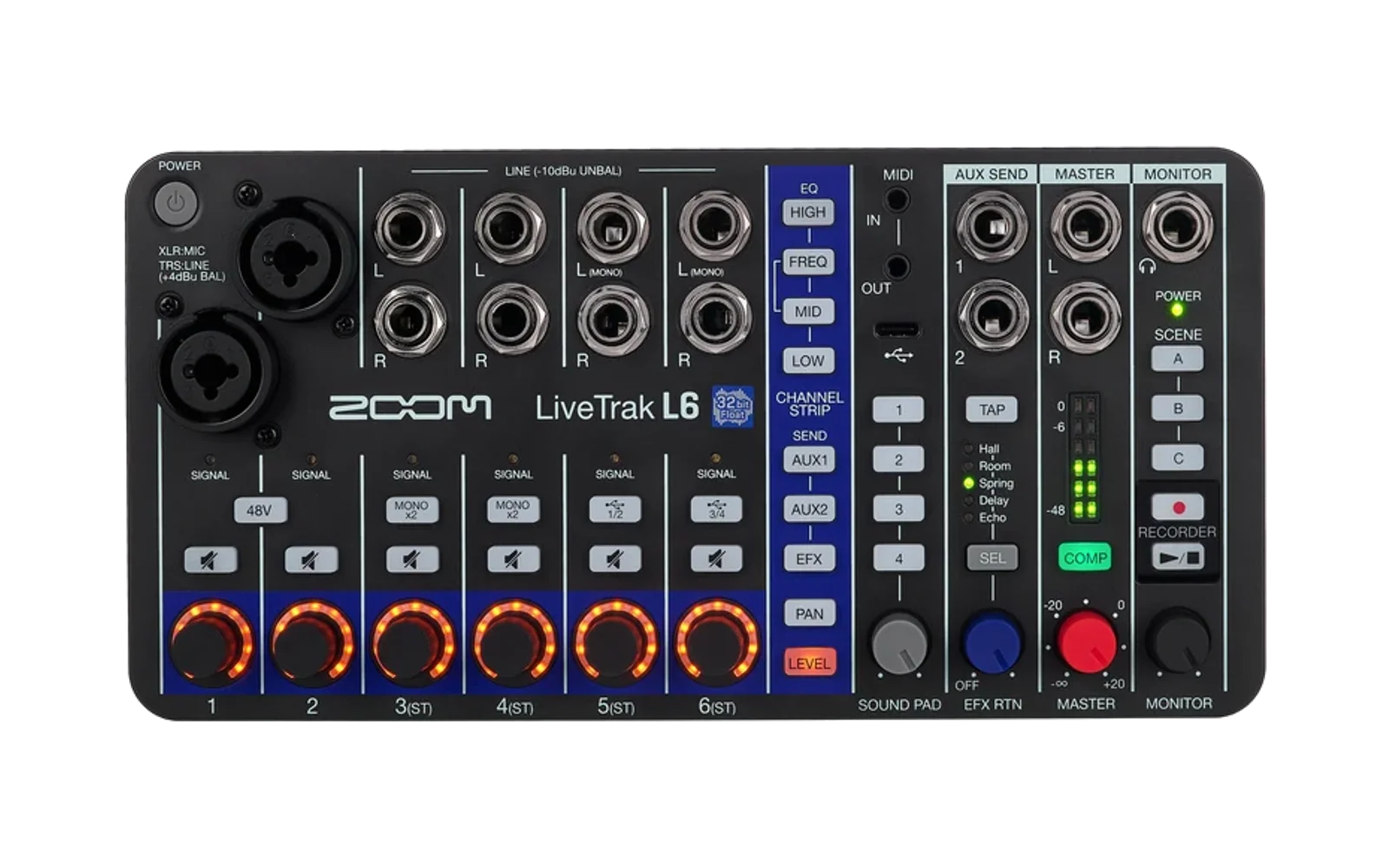
Overdub and stereo AUX firmware for the Zoom LiveTrak L6
Unofficial replacement firmware for the original Zoom LiveTrak L6 (not the L6max). It lets you overdub using only the mixer, and adds a stereo AUX send you can switch on and off. Version 0.3.0, made from Zoom's own firmware v1.10.
This is independent work, not affiliated with or endorsed by Zoom. Zoom's firmware is not included. You download it from Zoom, and the patcher page turns it into the new firmware file on your own computer. You can also build it yourself.
What it adds
- Your last four takes on the sound pads. When the overdub chain is on (hold EFX + PAN), each take you record goes onto pad 1 a few seconds after you stop, the one before moves to pad 2, and so on to pad 4. To overdub, play pad 1 while you record the next take. The pads play the takes where they already are on the card, so no card space is used. The chain is off until you switch it on.
- A list of what went into each take. Every take folder gets a
HISTORY.TXTnaming the earlier takes and pad sounds it contains, newest first. From a finished mix you can trace back to each original recording and its separate tracks. - A stereo AUX send. Hold AUX 1 and AUX 2 together for 1.5 seconds to switch between Zoom's two separate mono sends and one stereo send, with AUX 1 as the left side and AUX 2 the right, placed by each channel's pan.
Before you install
- This replaces your mixer's firmware. If a firmware ever fails to start, you can put Zoom's own firmware back from the card, because the small built-in program that performs updates is never changed by this project. This was tested with a deliberately broken firmware (see If the mixer won't start). It is good evidence, not a guarantee.
- Zoom's licence forbids altering or reverse-engineering its firmware without permission. Installing this is your decision and your responsibility. This project's MIT licence covers its own code only and comes with no warranty.
- Testing has been limited. These features have been used every day on one mixer since 12 October 2026; the 0.3.0 file itself was installed and measured at the AUX jacks on 17 October. Some situations have only been tested in a software simulation of the mixer, not on a real one (see Known limitations).
What you need
- A Zoom LiveTrak L6 (not the L6max) with firmware v1.10, and a microSD card that was formatted in the L6.
- A computer with a web browser. In Chrome or Edge the patcher page can also send the file to the mixer for you; in any other browser you copy it to the card yourself.
- Zoom's own v1.10 firmware download (the patcher page links to it).
To build the file from source instead, see Building and developing.
Install
- Make the firmware file. Open the
patcher page, download
Zoom's v1.10 zip from the link there, and drop the zip on the page. It
makes
L6.BINon your computer; nothing is uploaded. In Chrome or Edge the page can then send the file to the mixer for you: follow its steps, then skip to Update the mixer below. - Copy
L6.BINto the card (if the page didn't do it for you). Either put the card in a card reader, or connect the mixer by USB and click File Transfer Mode in ZOOM L6 Editor (Zoom's free app; File Transfer Mode makes the card appear on your computer as a drive). CopyL6.BINto the card's top folder, next toRECORDERandSOUND_PAD, replacing anyL6.BINalready there. Then eject the card. - Update the mixer. Power it from its USB port (batteries may not be
enough). Switch it off with the card in. Hold PLAY/STOP, then press
and hold POWER until the power light comes on; let go. The light
blinks green slowly while it updates (about 30 seconds), then quickly
when it's done. Don't switch off during the update. Then switch the mixer
off and on again.
- Quick red blinking means the update failed: switch off, check that
L6.BINis in the card's top folder, and try again. - If the mixer stays dark afterwards, see If the mixer won't start.
- Quick red blinking means the update failed: switch off, check that
Using it
Switching the overdub chain on and off. Hold EFX and PAN together for 1.5 seconds. If both lights blink for 2 seconds, the chain is now on. If both light steadily for 2 seconds, it is off. Afterwards the mixer shows the view of whichever of the two buttons you pressed second, as a normal press would. While you hold EFX the MUTE buttons act on the effect sends, as they always do, so don't touch MUTE during the hold.
Both holds, this one and the stereo AUX hold below, do nothing in the first 4 seconds after switching on, or while recording. The mixer keeps both settings when it is switched off.
With the chain off. A fresh install starts this way. Takes don't go onto
the pads and the pads keep whatever you put on them, but every take still
gets its HISTORY.TXT.
Overdubbing. Switch the chain on, then record a take as usual. A few seconds after you stop, once the mixer has finished saving, the take is on pad 1. Press pad 1 during the next take to play it into the new recording.
Keep MASTER and SOUND PAD at their 0 dB marks while you overdub, and keep the master compressor off. Set your listening level with MONITOR or your speakers instead. The mixer records each take after the master volume and compressor, and playing it from a pad (or with PLAY/STOP) sends it through them again. With MASTER turned down, each layer comes out quieter than the last, and with the compressor on, each layer is compressed again. The L6 has always worked this way.
The pads. While the chain is on, pads 1–4 hold your takes. Each new take
pushes the older ones along and replaces whatever sound was on the pad.
Switching the chain off leaves the pads as they are, so switch it off when
you want to keep your own sounds on them. Every pad in the chain shows the
name MASTER.WAV (choosing that name by hand in the pad menu gives silence).
Recordings made onto a pad, and recordings under 2 seconds, don't join the
chain.
Small MASTER.WAV files in the pad folders. While the chain is on, the
firmware puts a tiny silent MASTER.WAV (a tenth of a second) into each of
the card's SOUND_PAD/PAD1–PAD4 folders if there isn't one. Without it,
the pad would lose its take when the mixer is switched off. Leave these files
alone; if you delete one it comes back a few seconds after the card is next
in use (after leaving File Transfer Mode, or at the next start with the chain
on).
History files. Each take's folder on the card
(RECORDER/<take name>/HISTORY.TXT) lists the recordings and pad sounds it
contains, newest first, up to 100 of them. If older ones were left out, the
file says OMITTED, and they are listed in the history files of the takes
it names. Details: history file format.
Stereo AUX. Hold AUX 1 and AUX 2 together for 1.5 seconds. If both AUX lights blink for 2 seconds, the send is now stereo. If both light steadily, it is back to two mono sends. Afterwards the mixer shows the AUX 2 view, as a tap of AUX 2 would. A fresh install starts in mono.
In stereo. Each channel's AUX 1 level (and its send point) sets how loud it is in the stereo send, and its PAN places it left or right. The AUX 2 level does nothing until you switch back to mono, when Zoom's two separate sends return with their old settings. Muting AUX 1 mutes the whole stereo send and muting AUX 2 does nothing. As in Zoom's firmware, the pads and the built-in effects are not sent.
Effects loops. Zoom's sends follow the channel fader by default ("post-fader"), so turning a channel down also turns its sends down. To send a channel to an external effect while keeping it out of the main mix, set its send point to Pre Fader in ZOOM L6 Editor (AUX Send Point). The send point is saved with each scene.
Going back to Zoom's firmware
Copy the L6.BIN from Zoom's own zip to the card's top folder (replacing
this one), then update the mixer as in Install, step 3.
Your recordings, pad sounds and settings stay. The small MASTER.WAV files in
the pad folders and the HISTORY.TXT files can stay too; Zoom's firmware
ignores them, and the pads keep playing the takes that were last on them. The
mixer also keeps the stored chain and stereo settings (even through a factory
reset), but Zoom's firmware ignores those as well.
If the mixer won't start after an update
A firmware that gets stuck while starting leaves the mixer dark, with no lights, and your computer doesn't see it over USB. The mixer is not broken. You can fix it from the card.
- Put Zoom's own firmware on the card. Take the card out, put it in a
card reader on your computer, and copy the
L6.BINfrom Zoom's own v1.10 zip into the card's top folder, replacing the one there. (You need a card reader for this, because a stuck mixer can't show you its card.) Put the card back in the mixer. - Switch the mixer off completely. Unplug both USB cables and take out the batteries, since any one of them can keep it powered.
- Update as usual. Plug USB power back in, hold PLAY/STOP, then press and hold POWER until the power light comes on; let go. Wait for the slow green blinking to turn quick, then switch off and on.
This works because the update is done by a small built-in program that runs before the firmware starts, and this project never changes that program. The test is written up in experiment 18 and the bootloader findings.
Known limitations
- Only takes recorded at 48 kHz join the chain; a take long enough to be split into two files (about 93 minutes) does not.
- The stereo send's sound was last measured at the AUX jacks with test tones (experiment 41), not with music.
- Losing power just after stopping a take, while its history is being written, has not been tested.
- If takes are started and stopped faster than the history files can be written, one take can miss the chain.
- Saving scenes while in stereo, changing sends from ZOOM L6 Editor or over MIDI, and the pan of mono channels in stereo were tested in a software simulation of the mixer, not on a real one.
- The stereo switch also works in the L6's settings and test modes; that has not been tried.
Building and developing
- Build from source. macOS or Linux, git and Python 3.12
or newer; the build produces
release/0.3.0/L6.BIN. - Installer script. With the mixer's card mounted,
python tools/device/install_release.py --ejectcopies the builtL6.BINto it (after backing up the card's existingL6.BINand settings file) and ejects the card.--stockinstalls Zoom's ownL6.BINinstead (for going back, or for recovery with--card /Volumes/<card>). On Linux, or with several cards mounted, add--card <card folder>;--ejectis macOS only. - How it works
- History file format
- Development log and experiments
- Future work
Licence and credits
MIT licence for this repository's code and documentation: see
LICENSE. Zoom, LiveTrak and L6 are Zoom Corporation trademarks.
The File Transfer Mode message sequence used by
tools/device/l6_transfer_mode.py follows
philmillman/zoom-l6-companion
(MIT) and Magicking/L6-MassStorage.