SMK-dee




SMK-dee is a full dual-core polyphonic synthesizer and dynamic MIDI controller firmware ported to the M-VAVE SMK-37 (Pro & Elite).
⚡ Web Flasher & Sound Studio: Flash your SMK-37 keyboard and configure hardware mappings directly from your browser: https://djstrombo.github.io/SMK-dee/
Based on the Melodee multi-engine synthesizer for the M-VAVE FM-1 created by keremimo (@keremimo).
What's New in SMK-dee v1.6.1
- Melodee 1.6.1 Core Engine: Upgraded base to Melodee 1.6.1 with 22 sound engines (including SID, Drum 909, FM6, CZ-1, Prophet-5, and MIDI Track), 124 parameters, and 45 globals.
- Dedicated Bluetooth (BT) Button:
- Short press toggles Bluetooth ON, starting search or discoverable mode according to Global settings.
- Long press (>1.2s) turns the Bluetooth radio completely OFF (BT LED shuts off).
- Cleaned up button assignments: Tap Tempo removed from BT button for rock-solid radio operation.
- Pad MIDI Channel Combo:
- Pad MIDI channel configuration moved from
GLOBAL + BTtoGLOBAL + SEQ REC, freeing the BT button completely in MIDI controller mode.
- Pad MIDI channel configuration moved from
- Physical Drum Pad Isolation:
- Tapping physical drum pads (e.g. Pad 1 for Kick) now illuminates only that physical pad, removing duplicate mirror lighting on Pad 12 while preserving full GM sound mapping.
- Dynamic Track Color Pad Illumination:
- Drum and keys pads dynamically light up using the active track's distinctive LED color (Track 1 Cyan, Track 2 Yellow, Track 3 Magenta, Track 4 White, Drum Orange/Amber).
- Brighter Button LEDs:
- Increased button LED brightness across the control surface for crisp visibility on stage.
- Boot & Power Off Persistence:
- Sequences, sound design modifications, track parameters, and settings are preserved across reboots and power cycles.
- Global TRS MIDI Clock Routing:
- In
INTmode: transmits MIDI clock simultaneously over USB, Bluetooth, and TRS. - In
TRSmode: transmits clock exclusively over TRS (not over USB or Bluetooth). - In
USBmode: receives clock over USB. - In
BLEmode: receives clock over Bluetooth.
- In
- Multi-Version Sound Editor & Auto-Detection:
- The web application automatically identifies whether the connected SMK-37 is running v1.6.1 or v1.4.2 and loads the exact matching Synth Sound Editor and firmware card, with full 57-object complete backup archives support.
Hardware Control Map
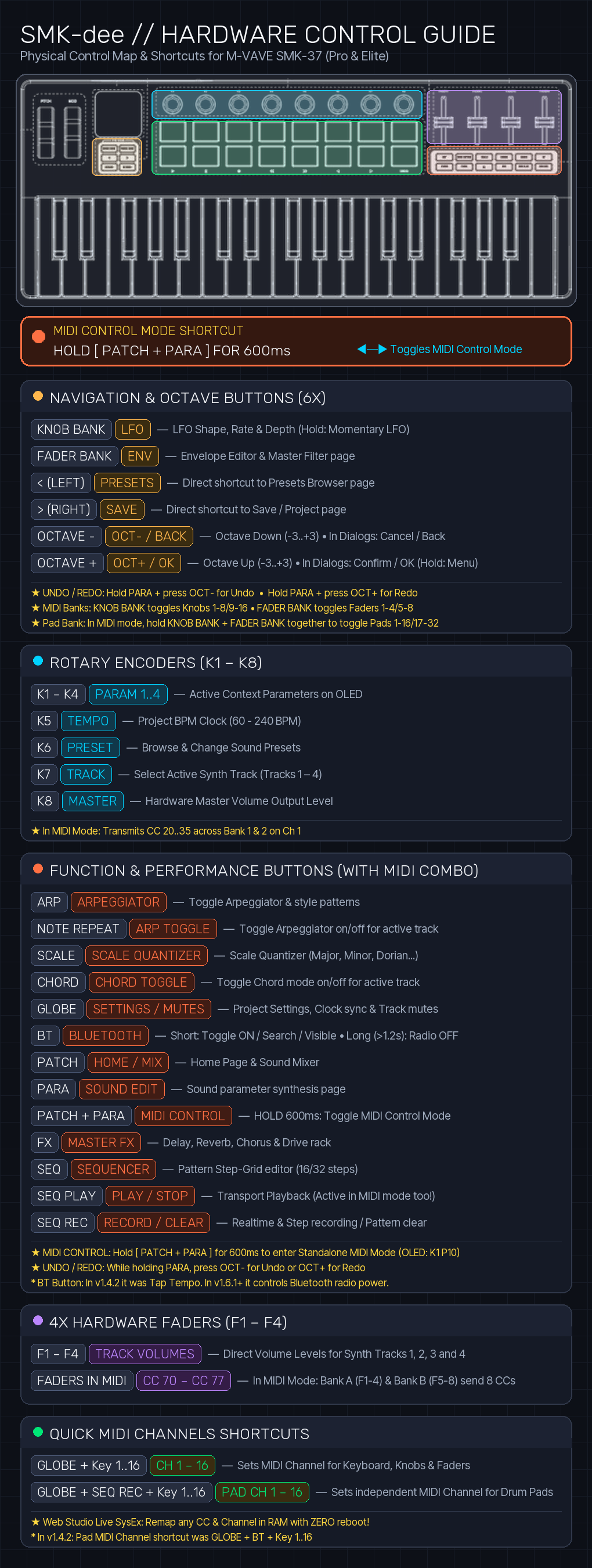
Overview & Key Additions (SMK-dee vs FM-1 Melodee)
While the original Melodee was designed for the compact FM-1 desktop unit, SMK-dee adapts and expands the entire engine to take full advantage of the M-VAVE SMK-37 Pro & Elite keyboard hardware:
| Feature | FM-1 (Melodee Original) | SMK-37 (SMK-dee Port) |
|---|---|---|
| Form Factor | Mini groovebox / desktop | 37-Key Keyboard Synthesizer & Controller |
| Keyboard | 16 mini keys / buttons | 37 full-travel velocity-sensitive keys |
| Pads | Shared key matrix | 16 velocity RGB pads (Dual bank: 32 pads) |
| Rotary Encoders | 4 context knobs | 8 physical continuous rotary encoders (Dual bank: 16 knobs) |
| Faders | None | 4 physical sliders / faders (Direct Track 1–4 levels in Synth; 8 CCs via Bank A/B in MIDI mode) |
| Physical Buttons | 14 FM-1 buttons | 18 dedicated SMK-37 buttons mapped 1-to-1 to engine functions |
| Operation Modes | Synthesizer Only | Dual Mode: Synthesizer Engine $\leftrightarrow$ Standalone MIDI Controller |
| Mode Switching | N/A | Hold PATCH + PARA for 600ms, or toggle remotely via Web Studio / SysEx |
| Hardware & MIDI Remapper | Static firmware tables | Dynamic On-The-Fly RAM Remapper via USB-MIDI SysEx (Zero reflash) |
| Web Studio | FM-1 Web Editor | SMK-dee Studio: In-browser Flasher, Button Mapper & MIDI CC Remapper |
| Theme / OLED | Stock FM-1 palette | Custom OLED boot title (SMK-dee), darkened Track 1 orange in BLACK theme, and About QR code |
Dual-Mode Architecture
SMK-dee transforms the SMK-37 into a hybrid performance instrument with two distinct modes:
1. Synthesizer Engine Mode
- Dual-Core Processing: Full 128-voice polyphonic multi-engine synthesizer powered by the JieLi AC695x/AC696x dual-core SoC.
- Sound Engines:
- FM6: 6-operator DX7-style frequency modulation synthesis with native feedback.
- Prophet 53: Analog-style dual-oscillator subtractive poly-synth.
- CZ-1: Casio phase-distortion synthesis with resonant waveforms.
- SID 6581: Commodore 64 soundchip emulation with arpeggio tables and digi-drums.
- Drum 909: Dedicated analog drum models (Kick, Snare, Toms, Hats, Claps).
- Physical Modeling: String, bell, and Karplus-Strong acoustic resonators.
- 4-Track Sequencer: 4 independent multi-timbral synth tracks with pattern chaining, live punch-in FX, parameter automation, and musical scale quantizer.
- Master Effects: Stereo Chorus, Delay with tone dampening, Hall Reverb, and Analog Distortion.
2. Standalone MIDI Controller Mode
- Holding physical
PATCH + PARAtogether for 600ms (or toggling via the Web Studio) seamlessly toggles between Synth Mode and MIDI Controller Mode. - When active, the OLED screen displays:
(Indicating Keyboard on Channel 1, Drum Pads on Channel 10, with live CC values shown as controls move).K1 P10 - Keyboard (37 keys): Transmits velocity, octave shift, pitch bend strip, and modulation wheel on the Keyboard MIDI Channel.
- Knobs (K1 – K16): Send customizable continuous CC messages across Bank 1 and Bank 2 on the Knobs MIDI Channel.
- Faders (F1 – F8): Send customizable CC messages across Bank A (F1–F4) and Bank B (F5–F8) on the Faders MIDI Channel.
- RGB Pads (01 – 32): Send velocity-sensitive Note or CC messages across Bank A and Bank B on the Pads MIDI Channel.
How the Hardware & MIDI Remapper Works
The SMK-dee Remapper is divided into two distinct workspaces accessible directly in the in-browser SMK-dee Web Studio:
┌────────────────────────────────────────────────────────────────────────┐
│                        SMK-dee WEB STUDIO                              │
├──────────────────────────────────┬─────────────────────────────────────┤
│  Tab 1: Engine Remapper (Synth)  │  Tab 2: MIDI Controller Customizer  │
│  - Physical Button to FM-1 Map   │  - 4 Independent MIDI Channels      │
│  - Encoders to FM-1 Knobs Map    │  - 16 Knob CCs (Bank 1 & Bank 2)    │
│  - Faders Track 1–4 Levels       │  - 8 Fader CCs (Bank A & Bank B)    │
│  - Instant SysEx RAM Injection   │  - 32 Pad Notes/CCs (Bank A & B)    │
└──────────────────────────────────┴─────────────────────────────────────┘
Workspace 1: Engine Remapper (Synthesizer Mode)
The Melodee sound engine was originally built for the 14 physical buttons and 4 encoders of the M-VAVE FM-1 desktop unit:
- FM-1 Physical Buttons (14 total):
OCT-,OCT+,FX,SCL,ENV,LFO,EDIT,GLO,HOME,SAVE,ARP,SEQ,PLAY,REC. - FM-1 Physical Encoders:
Knob 1,Knob 2,Knob 3,Knob 4,Select / Tempo,Presets,Algorithm,Master Volume.
The SMK-37 keyboard, on the other hand, has 18 physical buttons, 8 continuous encoders, and 4 faders.
The Engine Remapper provides a clean, open 1-to-1 physical mapping:
- 18 Physical Buttons: You can assign ANY physical button of the SMK-37 to act as ANY physical button of the FM-1 engine, or assign it to dedicated hardware shortcuts (
NOTE REPEAT,CHORD,SAVE <,SAVE >), or disable it ([Disabled]).- Want
KNOB BANKto act asPLAY? Just selectPLAYfrom the dropdown. - Want
FADER BANKto act asREC? Just selectREC. - Want
FXto act asLFO? Any button can become any FM-1 button.
- Want
- 8 Continuous Rotary Encoders (K1 – K8): Each physical encoder on the SMK-37 maps 1-to-1 to an FM-1 encoder role (
Knob 1..4,Tempo / Select,Presets,Algorithm / Track,Master Volume). - 4 Physical Faders (F1 – F4): Directly control the volume levels of Synth Tracks 1, 2, 3, and 4. (In Synth mode there are only 4 tracks and no fader banks; Fader Bank A/B for F5–F8 is exclusive to MIDI Controller Mode).
Workspace 2: MIDI Controller Customizer (MIDI Control Mode)
When you switch the keyboard into MIDI Controller Mode (by holding PATCH + PARA for 600ms or clicking "Toggle Mode" in the web studio), this workspace customizes how the hardware controls your DAW, VST plugins, and external synths:
1. Four Independent MIDI Channels
Unlike simple MIDI controllers that send everything over a single channel, SMK-dee provides 4 independent MIDI channels:
- Keyboard Channel (1 – 16): 37 velocity keys, pitch bend strip, mod wheel, and octave shift.
- Knobs Channel (1 – 16): Continuous CC data from the 8 rotary encoders across Bank 1 and Bank 2.
- Faders Channel (1 – 16): CC data from the 4 physical faders across Bank 1 and Bank 2.
- Pads Channel (1 – 16): Velocity-sensitive notes or CCs from the 16 RGB pads across Bank A and Bank B.
💡 Real-world Example: Play lead synth lines on Channel 1 with the keys, mix DAW audio tracks on Channel 2 with the faders, tweak VST filter parameters on Channel 3 with the knobs, and finger-drum an Ableton Drum Rack on Channel 10 with the RGB pads—all simultaneously over a single USB cable!
2. 56 Assignable MIDI CCs
- 16 Knob CCs: Bank 1 (K1–K8, default CC 20–27) & Bank 2 (K9–K16, default CC 28–35).
- 8 Fader CCs: Bank 1 (F1–F4, default CC 70–73) & Bank 2 (F5–F8, default CC 74–77).
- 32 Pad CCs / Notes: Bank A (Pads 1–16, default CC 36–51) & Bank B (Pads 17–32, default CC 52–67).
3. Hardware Channel Shortcuts (Without Computer)
You can change MIDI channels on the fly directly on the keyboard without opening the web studio:
- Set Keyboard, Knobs & Faders Channel (1–16): In MIDI mode, hold
GLOBEand press any of the first 16 keys on the keyboard (Key 1 = Ch 1, Key 2 = Ch 2, ..., Key 16 = Ch 16). - Set Drum Pads Channel (1–16): In MIDI mode, hold
GLOBE + SEQ RECtogether and press any of the first 16 keys on the keyboard. (In legacy v1.4.2:GLOBE + BT).
Live SysEx Synchronization
Both workspaces communicate with the SMK-37 in real time via bidirectional USB-MIDI SysEx:
- "Read from Keyboard" (SysEx
0x01): Queries the keyboard and instantly populates the Web Studio with your active configuration. - "Apply to Keyboard (RAM)" (SysEx
0x02): Injects your new mappings directly into RAM. The keyboard updates in milliseconds without rebooting and OLED confirms withMAPPING UPDATED. - "Save to Flash" (SysEx
0x03 0x03): Burns the RAM configuration into internal non-volatile flash memory so it stays saved across power cycles and battery disconnects.
Default Hardware Controls Reference (Current Firmware)
Navigation & Octave Cluster (Left Buttons under OLED)
| Button Label | Default Function | What it Actually Does in Current Firmware |
|---|---|---|
| KNOB BANK | LFO | Opens LFO modulation page (Shape, Rate, Depth, Target) |
| FADER BANK | ENV | Opens Envelope generator page |
< (LEFT) | PRESETS | Direct shortcut to Preset Browser page (or steps left < across Save pages) |
> (RIGHT) | SAVE | Direct shortcut to Save / Project page (or steps right > across Save pages) |
OCTAVE - | OCT- / BACK | Transposes keyboard octave down (-3..+3). In popups/dialogs: Cancel / Back. |
OCTAVE + | OCT+ / OK | Transposes keyboard octave up (-3..+3). In popups/dialogs: Confirm / OK. Hold: Context Menu. |
PARA + OCT- | UNDO | Hold PARA and press OCT- to Undo last action |
PARA + OCT+ | REDO | Hold PARA and press OCT+ to Redo last action |
Function & Performance Cluster (Right Buttons under Faders)
| Button Label | Default Function | What it Actually Does in Current Firmware |
|---|---|---|
| ARP | ARP | Opens the Arpeggiator page (patterns, rate, octaves) |
| NOTE REPEAT | REPEAT | Toggles Arpeggiator on/off for active track (restores last configured arp pattern) |
| SCALE | SCALE | Opens the Scale / Quantizer page (Major, Minor, Dorian, Pentatonic...) |
| CHORD | CHORD | Toggles Chord mode on/off for active track (restores last configured chord voicing) |
| GLOBE | GLOBAL | Opens Master menu (MIDI clock sync, UNUSED TRACKS, LIGHTS level, track mutes) |
| BT | BLUETOOTH | Short press: Turn ON / Search / Visible. Long press (>1.2s): Bluetooth radio completely OFF (LED turns off) (In legacy v1.4.2: Tap Tempo) |
| PATCH | HOME / MIX | Main Home screen & Track Mixer |
| PATCH + PARA | MIDI MODE | Hold together for 600ms: Toggle Synthesizer Mode $\leftrightarrow$ MIDI Controller Mode |
| PARA | EDIT | Opens synth sound parameter editing page |
| FX | MASTER FX | Opens Master effects rack (Delay, Reverb, Chorus, Drive) |
| SEQ | SEQUENCER | Opens pattern step-grid sequencer |
| SEQ PLAY | PLAY / STOP | Starts or stops pattern playback |
| SEQ REC | REC / CLEAR | Realtime / step recording & pattern clear |
Rotary Encoders (K1 – K8)
- K1 – K4: Context screen parameter knobs 1 to 4 (controls whatever 4 values appear on the active OLED page).
- K5: Master project tempo (60 – 240 BPM).
- K6: Sound preset and waveform browser (browse & change presets).
- K7: Active synth track selector (Tracks 1 – 4) and engine algorithm.
- K8: Hardware master volume output level.
Hardware Faders (F1 – F4)
- In Synthesizer Mode: Directly control the volume of the 4 synth tracks:
- F1: Track 1 Volume Level
- F2: Track 2 Volume Level
- F3: Track 3 Volume Level
- F4: Track 4 Volume Level (Note: There are 4 tracks in the synthesizer engine; fader banking for F5–F8 only exists in MIDI Controller Mode).
- In MIDI Controller Mode: Transmit customizable MIDI CC messages:
- Bank A (1–4): Faders 1 to 4 send CC 70–73
- Bank B (5–8): Faders 5 to 8 send CC 74–77
Dedicated Controls & Combinations in MIDI Controller Mode
When you toggle the SMK-37 into Standalone MIDI Controller Mode (by holding PATCH + PARA together for 600ms, or toggling via the Web Studio), the physical controls and button combinations shift to a dedicated controller workflow. The OLED screen displays K1 P10 (Keyboard Channel 1, Pads Channel 10) and shows live CC values in real time as controls are moved.
1. Mode Switching & Transport
| Button / Combination | Function in MIDI Mode | Description |
|---|---|---|
PATCH + PARA (Hold 600ms) | Toggle MIDI / Synth Mode | Exits MIDI Controller Mode and returns to SMK-dee Synthesizer Mode. |
SEQ PLAY | Transport Play / Stop | Starts or stops pattern sequencer playback in the background without leaving MIDI mode. |
BT | Bluetooth Radio Control | Short press: Toggles Bluetooth ON / Search / Visible. Long press (>1.2s): Turns Bluetooth radio completely OFF (LED turns off). (In legacy v1.4.2: Tap Tempo BPM) |
2. Bank Switching Shortcuts
| Button / Combination | Bank Toggled | What it Controls |
|---|---|---|
KNOB BANK | Knobs Bank A $\leftrightarrow$ Bank B | Toggles encoders between Bank A (K1–K8, CC 20–27) and Bank B (K9–K16, CC 28–35). OLED confirms with KNOB BANK A (1-8) or KNOB BANK B (9-16). |
FADER BANK | Faders Bank A $\leftrightarrow$ Bank B | Toggles faders between Bank A (F1–F4, CC 70–73) and Bank B (F5–F8, CC 74–77). OLED confirms with FADER BANK A (1-4) or FADER BANK B (5-8). |
KNOB BANK + FADER BANK | Pads Bank A $\leftrightarrow$ Bank B | Hold both physical buttons together to toggle RGB pads between Bank A (Pads 1–16, CC/Notes 36–51) and Bank B (Pads 17–32, CC/Notes 52–67). OLED confirms with PAD BANK A (1-16) or PAD BANK B (17-32). |
3. Quick MIDI Channel Selection (Hardware Chords)
You can assign MIDI channels on the fly directly from the keyboard surface without touching a computer:
| Key Combination | Target MIDI Channel | How to Use |
|---|---|---|
GLOBE + Key 1..16 | Keyboard, Knobs & Faders Channel | Hold GLOBE and press any of the first 16 keys on the keybed (from left to right: Key 1 = Ch 1, Key 2 = Ch 2, ..., Key 16 = Ch 16). The note is muted and OLED displays MIDI CH X. |
GLOBE + SEQ REC + Key 1..16 | Drum Pads Channel | Hold GLOBE and SEQ REC together and press any of the first 16 keys to set the independent channel for all 16 RGB pads. OLED displays PAD CH X. (In legacy v1.4.2: GLOBE + BT) |
4. Performance Controls & Pitch / Scale
| Control | MIDI Output | Behavior in MIDI Mode |
|---|---|---|
OCTAVE - / OCTAVE + | Keyboard Octave Shift | Shifts keyboard octave down or up (-3 to +3). Pressing both together resets octave to 0. |
SCALE | Scale Quantizer | Opens the Scale page to quantize outgoing MIDI notes to selected musical scales (Major, Minor, Dorian, etc.). |
ARP | Arpeggiator | Opens the Arpeggiator page to arpeggiate outgoing MIDI notes. |
NOTE REPEAT | ARP Toggle | Instantly toggles the arpeggiator on or off for outgoing MIDI notes. |
CHORD | Chord Toggle | Instantly toggles polyphonic chord harmonization on or off for outgoing MIDI notes. |
| Pitch Bend Strip | Pitch Bend (14-bit) | Transmits high-resolution continuous Pitch Bend on the Keyboard Channel. |
| Modulation Wheel | Modulation (CC 1) | Transmits continuous Modulation Wheel CC 1 on the Keyboard Channel. |
| Knobs (K1 – K8) | Continuous CC (0–127) | Transmit CC messages on the Knobs Channel. Knobs 1..4 also edit Scale/Arp when those pages are active. |
| Faders (F1 – F4) | Continuous CC (0–127) | Transmit CC messages on the Faders Channel across Bank A (F1–F4) and Bank B (F5–F8). |
| 16 RGB Pads | Notes / CC (Velocity) | Transmit velocity-sensitive Notes or CCs on the independent Pads Channel across Bank A and Bank B. |
5. LED Indicators in MIDI Mode
GLOBELED: Stays solid ON constantly, indicating that the keyboard is operating in MIDI Controller Mode.PATCH,PARA,FX,SEQLEDs: Pulse gently with a slow ambient blink (750ms ON / 750ms OFF).BTLED: Reflects Bluetooth status (solid ON when connected, pulses when searching/discoverable, completely OFF when Bluetooth is disabled).KNOB BANKLED: Lit when Knob Bank B (Knobs 9–16) is active; unlit when Bank A is active.FADER BANKLED: Lit when Fader Bank B (Faders 5–8) is active; unlit when Bank A is active.<and>LEDs: Unlit (inactive in MIDI mode).
Installation & Flashing
Requirements
- Hardware: M-VAVE SMK-37 (Pro or Elite model).
- Cable: Standard USB-C to USB-A/C cable connected directly to your computer.
- Browser: A Chromium-based browser supporting the Web MIDI SysEx API:
- Google Chrome, Microsoft Edge, Brave, or Opera.
- Compatible with Windows 10/11, macOS, Linux, and Android (via Chrome with USB OTG).
- (Note: Apple Safari and Mozilla Firefox do not support Web MIDI SysEx).
Method 1: In-Browser Web Flasher (Recommended for Everyone)
The official, easiest, and fastest way to flash SMK-dee. No software installation, no Python, and no terminal required:
- Open SMK-dee Web Studio in Chrome, Edge, or Brave: 👉 https://djstrombo.github.io/SMK-dee/
- In section 01 // FIRMWARE SELECTION, choose your hardware model:
- Select
SMK-37 Elite (37 Keys, OLED, Faders)if you have the Elite version. - Select
SMK-37 Pro (37 Keys, OLED, Faders)if you have the Pro version.
- Select
- Connect your SMK-37 to your computer via USB and click Connect Keyboard. When prompted by the browser, click Allow to grant Web MIDI SysEx permission.
- In section 03 // FIRMWARE FLASHER, click Flash Keyboard Now.
- The web flasher transfers the Stage 1 OTA loader, enters update mode, and streams the firmware into flash.
- Once the progress bar reaches 100%, the keyboard reboots automatically into SMK-dee!
Method 2: Offline / Local Web Studio (No Internet Required)
If you are working in an offline studio without internet access, you can run the exact same Web Studio locally.
Because Chromium browsers automatically grant Web MIDI SysEx access on http://localhost, the local web flasher and hardware mapper work 100% offline:
# 1. Clone this repository to your computer
git clone https://github.com/djStrombo/SMK-dee.git
cd SMK-dee/web

# 2. Start a simple local HTTP server (Python 3 is built into macOS, Linux, and Windows)
python3 -m http.server 8080
Open http://localhost:8080 in Chrome, Edge, or Brave. All flashing, sound editing, and hardware remapping features work 100% identically and completely offline.
Method 3: Command Line OTA Flasher (Python CLI)
For advanced users or Linux terminal environments, you can flash directly via command line using the included Python OTA flasher:
# 1. Clone the repository
git clone https://github.com/djStrombo/SMK-dee.git
cd SMK-dee

# 2. Install the lightweight Python MIDI library if needed
pip install mido python-rtmidi

# 3. Flash your keyboard model
# For SMK-37 Elite:
python3 tools/fm1_install.py web/firmware/smk-dee-elite.fwsc

# For SMK-37 Pro:
python3 tools/fm1_install.py web/firmware/smk-dee-pro.fwsc
Returning to Factory Firmware (100% Reversible)
Flashing SMK-dee is completely safe and 100% non-destructive. You can return to the stock M-VAVE factory firmware at any time in under 30 seconds:
- Open SMK-dee Web Studio (or your local offline server).
- Connect your SMK-37 keyboard via USB.
- In section 01 // FIRMWARE SELECTION, choose:
Factory Restore (V016) — SMK-37 Elite(if you have the Elite)Factory Restore (V016) — SMK-37 Pro(if you have the Pro)
- Click Flash Keyboard Now.
- The keyboard will reboot with the original factory firmware restored.
(Alternatively, you can flash
web/firmware/SMK-37_Elite_016.fwscorweb/firmware/SMK-37_Pro_016.fwscvia terminal using Method 3).
Building from Source
The full C firmware source code and build toolchains are included directly in this repository for both versions:
- SMK-dee v1.6.1 (Latest): Located in
source/smk-dee-1.6.1/(based on Melodee 1.6.1) - SMK-dee v1.4.2 (Legacy): Located in
source/smk-dee-1.4.2/(based on Melodee 1.4.2)
You can also access the dedicated firmware port Git repository at:
👉 https://github.com/djStrombo/melodee-smk37 (branch 1.6.1)
How to Compile
- Navigate to the desired version's source directory:
cd source/smk-dee-1.6.1 # Or for v1.4.2: cd source/smk-dee-1.4.2 - Refer to
BUILDING.mdfor toolchain setup instructions (JieLi cross-compiler toolchain and AC79 SDK). - Run the build script:
The compiled firmware packages (./build.shsmk-dee-1.6.1-elite.fwsc,smk-dee-1.6.1-pro.fwsc, andsmk-dee.bin) will be generated inside thebuild/directory.
Credits & License
- Melodee Sound Engine & Architecture: Created by keremimo (@keremimo) for the M-VAVE FM-1.
- Original Felucca Base: Created by Leo Kuroshita (@kurogedelic), Hügelton Instruments.
- SMK-dee Port, SMK-37 Hardware Adaptation, Dynamic SysEx RAM Remapper & Web Studio: Ported and developed by djStrombo (@djStrombo).
This project is licensed under the GNU General Public License v3.0 (GPL-3.0-only). See LICENSE for details.