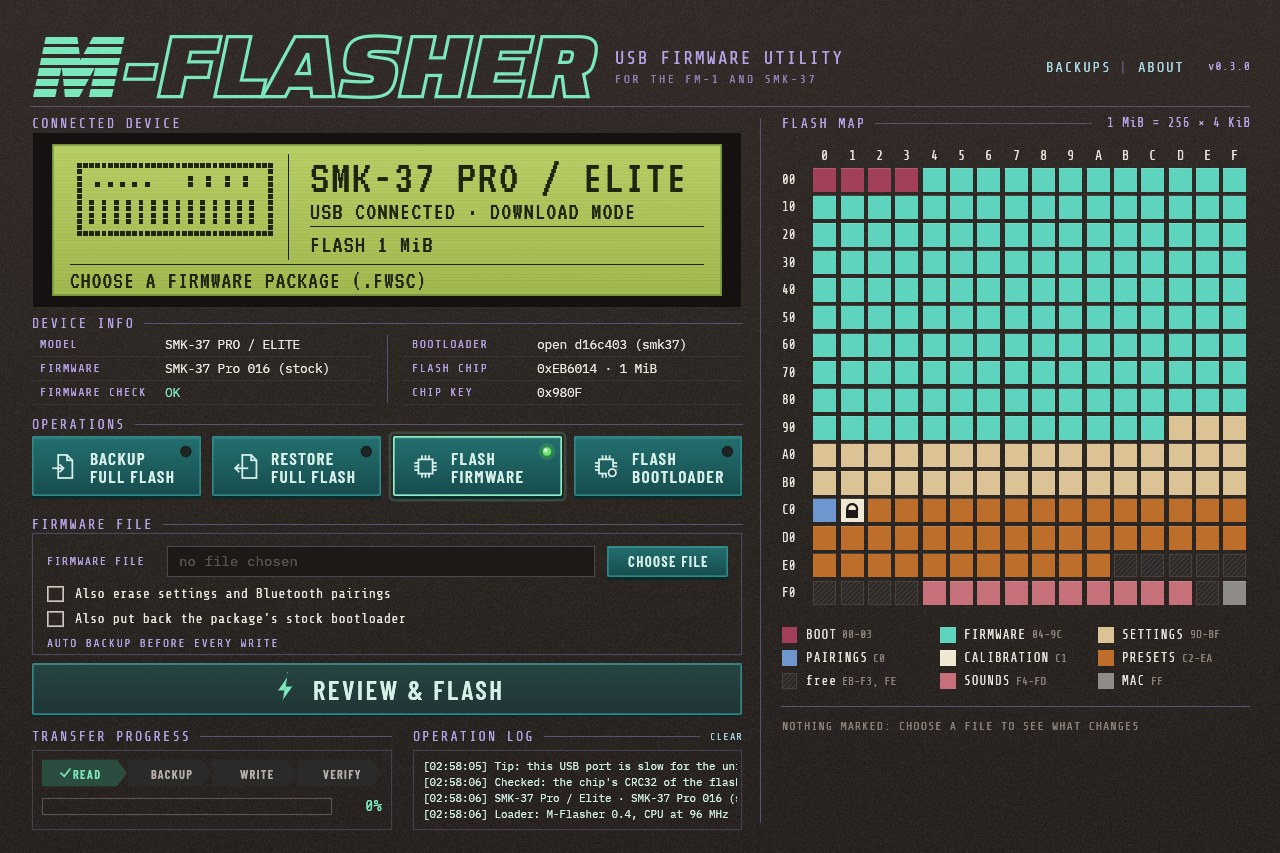
m-flasher
Peaking95/100m-flasher is custom firmware for the M-VAVE FM-1, by @jvitkauskas. Latest release v0.8.2 (November 2026), 38 stars on GitHub.
forM-VAVE FM-1·by@jvitkauskas
Unclaimed. Is this yours? Sign in with GitHub as @jvitkauskas to claim it.
M-Flasher-0.8.2-macos.dmg· 7.0 MB· +7 files
Custom license· jvitkauskas/m-flasher·downloads come from the creator’s GitHub releases
v0.8.2M-Flasher 0.8.2Latest8 files
Download Then Windows 10 / 11 M-Flasher-0.8.2-windows.zipextract it and run M-Flasher.exe. It asks for administrator rights. The app is not signed, so the first time Windows may say it protected your PC: More info → Run anyway.macOS 11+ (Apple silicon and Intel) M-Flasher-0.8.2-macos.dmgopen it and drag M-Flasher to Applications. The first time macOS blocks it: System Settings → Privacy & Security → Open Anyway. When it finds the unit, it asks for your password, and once to let it access a removable volume (the unit): Allow. Debian 12+, Ubuntu 22.04+, Mint, Raspberry Pi OS (64-bit) m-flasher_0.8.2-1_amd64.deb, ARM64:_arm64.debsudo apt install ./m-flasher_0.8.2-1_amd64.deb, connect the unit, and start M-Flasher from the app menu.Fedora, RHEL / Alma / Rocky 10, openSUSE Tumbleweed and Leap 16 m-flasher-0.8.2-1.x86_64.rpm, ARM64:.aarch64.rpmsudo dnf install ./m-flasher-0.8.2-1.x86_64.rpm(openSUSE:sudo zypper install …), connect the unit, and start M-Flasher from the app menu.Other Linux (glibc 2.35+) m-flasher-0.8.2-linux-x86_64.tar.gz, ARM64:-aarch64.tar.gzextract it and follow README.txt: install the udev rule once, connect the unit, runm-flasheras yourself.New in 0.8.2:
- m-bootloader 1.3 bundled. It fixes
BAD CONFIGon FM-1s with M-VAVE's 016 boot area, which M-UPGRADE writes when it installs 016. m-bootloader 1.2 stopped at its menu on every start on those units. If yours does, Boot app in the menu still starts the firmware, and installing m-bootloader again from this version fixes it. - A warning before installing an older m-bootloader from a file on a unit where it would show
BAD CONFIG. - Flash loader 1.3: the same code built with the open pi32v2 LLVM toolchain.
Tested on an SMK-37 Pro from Linux: the loader read, installed and restored firmware, ending byte-identical, and m-bootloader 1.3 boots its firmware and stock 016. On an FM-1, the build just before this m-bootloader boots with both the 015 and 016 boot configurations. Not yet tried on Windows or macOS.
m-bootloader has still not been tested on the FM-1's newer flash chip (
0xB36014), and M-Flasher warns before installing it there (#13).Everything else is unchanged from 0.8.1.
- m-bootloader 1.3 bundled. It fixes
v0.8.1M-Flasher 0.8.18 files
Download Then Windows 10 / 11 M-Flasher-0.8.1-windows.zipextract it and run M-Flasher.exe. It asks for administrator rights. The app is not signed, so the first time Windows may say it protected your PC: More info → Run anyway.macOS 11+ (Apple silicon and Intel) M-Flasher-0.8.1-macos.dmgopen it and drag M-Flasher to Applications. The first time macOS blocks it: System Settings → Privacy & Security → Open Anyway. When it finds the unit, it asks for your password, and once to let it access a removable volume (the unit): Allow. Debian 12+, Ubuntu 22.04+, Mint, Raspberry Pi OS (64-bit) m-flasher_0.8.1-1_amd64.deb, ARM64:_arm64.debsudo apt install ./m-flasher_0.8.1-1_amd64.deb, connect the unit, and start M-Flasher from the app menu.Fedora, RHEL / Alma / Rocky 10, openSUSE Tumbleweed and Leap 16 m-flasher-0.8.1-1.x86_64.rpm, ARM64:.aarch64.rpmsudo dnf install ./m-flasher-0.8.1-1.x86_64.rpm(openSUSE:sudo zypper install …), connect the unit, and start M-Flasher from the app menu.Other Linux (glibc 2.35+) m-flasher-0.8.1-linux-x86_64.tar.gz, ARM64:-aarch64.tar.gzextract it and follow README.txt: install the udev rule once, connect the unit, runm-flasheras yourself.New in 0.8.1:
- The FM-1's newer flash chip. FM-1s sold from late 2026 have a UCUN UC25HQ80 flash (
0xB36014). M-Flasher now identifies these units with certainty, instead of showing "FM-1 (probably)". - A warning before installing m-bootloader on an untested flash chip. m-bootloader has not been tested on the UC25HQ80, and one such unit did not start after it was installed. The cause is not known yet (#13).
- A clearer failure when the flash cannot be read. If the flash loader found no flash chip when it started, which showed up as "16 of 16384 bytes received", M-Flasher now starts it once more. If that does not help, it says so and gives the ID the chip reads. The flash chip's ID is also logged before the read, so a failed read still reports it.
Tested on an SMK-37 Pro from Linux. The new loader restart has only been tested against a simulated unit.
Everything else is unchanged from 0.8.0.
- The FM-1's newer flash chip. FM-1s sold from late 2026 have a UCUN UC25HQ80 flash (
v0.8.0M-Flasher 0.8.08 files
Download Then Windows 10 / 11 M-Flasher-0.8.0-windows.zipextract it and run M-Flasher.exe. It asks for administrator rights. The app is not signed, so the first time Windows may say it protected your PC: More info → Run anyway.macOS 11+ (Apple silicon and Intel) M-Flasher-0.8.0-macos.dmgopen it and drag M-Flasher to Applications. The first time macOS blocks it: System Settings → Privacy & Security → Open Anyway. When it finds the unit, it asks for your password, and once to let it access a removable volume (the unit): Allow. Debian 12+, Ubuntu 22.04+, Mint, Raspberry Pi OS (64-bit) m-flasher_0.8.0-1_amd64.deb, ARM64:_arm64.debsudo apt install ./m-flasher_0.8.0-1_amd64.deb, connect the unit, and start M-Flasher from the app menu.Fedora, RHEL / Alma / Rocky 10, openSUSE Tumbleweed and Leap 16 m-flasher-0.8.0-1.x86_64.rpm, ARM64:.aarch64.rpmsudo dnf install ./m-flasher-0.8.0-1.x86_64.rpm(openSUSE:sudo zypper install …), connect the unit, and start M-Flasher from the app menu.Other Linux (glibc 2.35+) m-flasher-0.8.0-linux-x86_64.tar.gz, ARM64:-aarch64.tar.gzextract it and follow README.txt: install the udev rule once, connect the unit, runm-flasheras yourself.New in 0.8.0:
- Fame MiniFM support. The MiniFM is an FM-1 under another name: M-Flasher now finds it on USB MIDI and detects it as an FM-1, so DOWNLOAD MODE appears. Packages of either name install on either unit, so
MiniFM_016andFM-1_016can be cross-flashed. The app warns first, because the unit then reports itself as the other model and M-UPGRADE only accepts that model's packages. The backup made before the write brings the original firmware back. Checked against both vendor packages on simulated flash, not yet on a real MiniFM: reports welcome in #12.
Everything else is unchanged from 0.7.0.
- Fame MiniFM support. The MiniFM is an FM-1 under another name: M-Flasher now finds it on USB MIDI and detects it as an FM-1, so DOWNLOAD MODE appears. Packages of either name install on either unit, so
v0.7.0M-Flasher 0.7.08 files
Download Then Windows 10 / 11 M-Flasher-0.7.0-windows.zipextract it and run M-Flasher.exe. It asks for administrator rights. The app is not signed, so the first time Windows may say it protected your PC: More info → Run anyway.macOS 11+ (Apple silicon and Intel) M-Flasher-0.7.0-macos.dmgopen it and drag M-Flasher to Applications. The first time macOS blocks it: System Settings → Privacy & Security → Open Anyway. When it finds the unit, it asks for your password, and once to let it access a removable volume (the unit): Allow. Debian 12+, Ubuntu 22.04+, Mint, Raspberry Pi OS (64-bit) m-flasher_0.7.0-1_amd64.deb, ARM64:_arm64.debsudo apt install ./m-flasher_0.7.0-1_amd64.deb, connect the unit, and start M-Flasher from the app menu.Fedora, RHEL / Alma / Rocky 10, openSUSE Tumbleweed and Leap 16 m-flasher-0.7.0-1.x86_64.rpm, ARM64:.aarch64.rpmsudo dnf install ./m-flasher-0.7.0-1.x86_64.rpm(openSUSE:sudo zypper install …), connect the unit, and start M-Flasher from the app menu.Other Linux (glibc 2.35+) m-flasher-0.7.0-linux-x86_64.tar.gz, ARM64:-aarch64.tar.gzextract it and follow README.txt: install the udev rule once, connect the unit, runm-flasheras yourself.New in 0.7.0:
- Installing firmware erases settings and Bluetooth pairings by default. Custom firmwares are not always compatible with each other's data, and settings or pairings left by one can cause issues in the next, so Also erase settings and Bluetooth pairings now starts ticked. Untick it to keep them, for example when reinstalling the same firmware. Saved sequences are kept, as before. The command line is unchanged:
m-flasher firmwareerases them only with--wipe-settings. m-flasher restartleaves download mode without touching the flash: the unit resets and starts its firmware, and M-Flasher waits up to a minute for it to show up on USB MIDI (the SMK-37's stock firmware takes about half a minute).--restartdoes the same afterrestore,firmwareandbootloader.
Everything else is unchanged from 0.6.1.
- Installing firmware erases settings and Bluetooth pairings by default. Custom firmwares are not always compatible with each other's data, and settings or pairings left by one can cause issues in the next, so Also erase settings and Bluetooth pairings now starts ticked. Untick it to keep them, for example when reinstalling the same firmware. Saved sequences are kept, as before. The command line is unchanged:
v0.6.1M-Flasher 0.6.18 files
Download Then Windows 10 / 11 M-Flasher-0.6.1-windows.zipextract it and run M-Flasher.exe. It asks for administrator rights. The app is not signed, so the first time Windows may say it protected your PC: More info → Run anyway.macOS 11+ (Apple silicon and Intel) M-Flasher-0.6.1-macos.dmgopen it and drag M-Flasher to Applications. The first time macOS blocks it: System Settings → Privacy & Security → Open Anyway. When it finds the unit, it asks for your password, and once to let it access a removable volume (the unit): Allow. Debian 12+, Ubuntu 22.04+, Mint, Raspberry Pi OS (64-bit) m-flasher_0.6.1-1_amd64.deb, ARM64:_arm64.debsudo apt install ./m-flasher_0.6.1-1_amd64.deb, connect the unit, and start M-Flasher from the app menu.Fedora, RHEL / Alma / Rocky 10, openSUSE Tumbleweed and Leap 16 m-flasher-0.6.1-1.x86_64.rpm, ARM64:.aarch64.rpmsudo dnf install ./m-flasher-0.6.1-1.x86_64.rpm(openSUSE:sudo zypper install …), connect the unit, and start M-Flasher from the app menu.Other Linux (glibc 2.35+) m-flasher-0.6.1-linux-x86_64.tar.gz, ARM64:-aarch64.tar.gzextract it and follow README.txt: install the udev rule once, connect the unit, runm-flasheras yourself.New in 0.6.1:
- Units whose USB MIDI name is spelled without a dash are found too, such as
FM1_MONITOR, so M-Flasher can switch them to download mode without holding any keys.FM1andSMK37are now recognised alongsideFM-1,SMK-37andFelucca, and a unit that lists ports under both spellings is still sent the switch once.
Everything else is unchanged from 0.6.0.
- Units whose USB MIDI name is spelled without a dash are found too, such as
v0.6.0M-Flasher 0.6.08 files
Download Then Windows 10 / 11 M-Flasher-0.6.0-windows.zipextract it and run M-Flasher.exe. It asks for administrator rights. The app is not signed, so the first time Windows may say it protected your PC: More info → Run anyway.macOS 11+ (Apple silicon and Intel) M-Flasher-0.6.0-macos.dmgopen it and drag M-Flasher to Applications. The first time macOS blocks it: System Settings → Privacy & Security → Open Anyway. When it finds the unit, it asks for your password, and once to let it access a removable volume (the unit): Allow. Debian 12+, Ubuntu 22.04+, Mint, Raspberry Pi OS (64-bit) m-flasher_0.6.0-1_amd64.deb, ARM64:_arm64.debsudo apt install ./m-flasher_0.6.0-1_amd64.deb, connect the unit, and start M-Flasher from the app menu.Fedora, RHEL / Alma / Rocky 10, openSUSE Tumbleweed and Leap 16 m-flasher-0.6.0-1.x86_64.rpm, ARM64:.aarch64.rpmsudo dnf install ./m-flasher-0.6.0-1.x86_64.rpm(openSUSE:sudo zypper install …), connect the unit, and start M-Flasher from the app menu.Other Linux (glibc 2.35+) m-flasher-0.6.0-linux-x86_64.tar.gz, ARM64:-aarch64.tar.gzextract it and follow README.txt: install the udev rule once, connect the unit, runm-flasheras yourself.New in 0.6.0:
- FM-1 firmware 016, the vendor's major update, is supported: its DX7 data file, and its new settings and sequencer layout, which the flash map now shows, including saved sequences. Erasing settings clears settings and Bluetooth pairings at the addresses the package declares and keeps saved sequences. When switching between 015 and 016, M-Flasher warns that the data layout changes; restore a backup to go back to the earlier firmware with its data.
- Bootloader replacement works with 016's larger stock bootloader. 016 moves the boot configuration (
isd_config.ini) inside the boot area. M-Flasher now reads where it is from the file table instead of assuming a fixed address, keeps it, and moves it only when a larger bootloader needs the room, never over other data. This also makes it possible to put 016's stock bootloader on a unit with the older layout. m-flasher run-ram, for developers: uploads a program of your own to the chip's RAM through download mode, starts it, sends it commands and reads RAM back, without writing to the flash (see docs/usage.md). It runs arbitrary code on the chip; switching the unit off and on returns it to normal.
The other operations and safety rules are unchanged. m-bootloader 1.2 is bundled, as in 0.5.x. Installing FM-1 016 with M-Flasher has been tested on a unit.
run-ramhas so far only been tested against a simulated unit.v0.5.1M-Flasher 0.5.18 files
Download Then Windows 10 / 11 M-Flasher-0.5.1-windows.zipextract it and run M-Flasher.exe. It asks for administrator rights. The app is not signed, so the first time Windows may say it protected your PC: More info → Run anyway.macOS 11+ (Apple silicon and Intel) M-Flasher-0.5.1-macos.dmgopen it and drag M-Flasher to Applications. The first time macOS blocks it: System Settings → Privacy & Security → Open Anyway. When it finds the unit, it asks for your password, and once to let it access a removable volume (the unit): Allow. Debian 12+, Ubuntu 22.04+, Mint, Raspberry Pi OS (64-bit) m-flasher_0.5.1-1_amd64.deb, ARM64:_arm64.debsudo apt install ./m-flasher_0.5.1-1_amd64.deb, connect the unit, and start M-Flasher from the app menu.Fedora, RHEL / Alma / Rocky 10, openSUSE Tumbleweed and Leap 16 m-flasher-0.5.1-1.x86_64.rpm, ARM64:.aarch64.rpmsudo dnf install ./m-flasher-0.5.1-1.x86_64.rpm(openSUSE:sudo zypper install …), connect the unit, and start M-Flasher from the app menu.Other Linux (glibc 2.35+) m-flasher-0.5.1-linux-x86_64.tar.gz, ARM64:-aarch64.tar.gzextract it and follow README.txt: install the udev rule once, connect the unit, runm-flasheras yourself.Fixed in 0.5.1:
- Linux: DOWNLOAD MODE no longer hangs when another program uses the unit's MIDI port, such as PipeWire's MIDI bridge (common on recent Debian), a browser with Web MIDI, or a DAW. 0.5.0 logged that it was switching the unit, then waited for the port, possibly forever. M-Flasher now sends through the ALSA sequencer, which shares the port. If the port can't be reached, it says so at once.
- macOS: a unit connected after M-Flasher starts is now found. Before, DOWNLOAD MODE only appeared if the unit was connected and switched on before M-Flasher started.
- The log now says when the download-mode message has actually been sent, and the window, like
m-flasher download-mode, reports it if the unit doesn't switch within 20 s.
Operations and safety rules are unchanged. m-bootloader 1.2 is bundled, as in 0.5.0. Tested on Linux (with the MIDI port held by another program) and on macOS (a unit connected after starting).
v0.5.0M-Flasher 0.5.08 files
Download Then Windows 10 / 11 M-Flasher-0.5.0-windows.zipextract it and run M-Flasher.exe. It asks for administrator rights. The app is not signed, so the first time Windows may say it protected your PC: More info → Run anyway.macOS 11+ (Apple silicon and Intel) M-Flasher-0.5.0-macos.dmgopen it and drag M-Flasher to Applications. The first time macOS blocks it: System Settings → Privacy & Security → Open Anyway. When it finds the unit, it asks for your password, and once to let it access a removable volume (the unit): Allow. Debian 12+, Ubuntu 22.04+, Mint, Raspberry Pi OS (64-bit) m-flasher_0.5.0-1_amd64.deb, ARM64:_arm64.debsudo apt install ./m-flasher_0.5.0-1_amd64.deb, connect the unit, and start M-Flasher from the app menu.Fedora, RHEL / Alma / Rocky 10, openSUSE Tumbleweed and Leap 16 m-flasher-0.5.0-1.x86_64.rpm, ARM64:.aarch64.rpmsudo dnf install ./m-flasher-0.5.0-1.x86_64.rpm(openSUSE:sudo zypper install …), connect the unit, and start M-Flasher from the app menu.Other Linux (glibc 2.35+) m-flasher-0.5.0-linux-x86_64.tar.gz, ARM64:-aarch64.tar.gzextract it and follow README.txt: install the udev rule once, connect the unit, runm-flasheras yourself.New in 0.5.0:
- Download mode without keys, even on a stock unit. Connect a unit that is running normally: M-Flasher finds it on USB MIDI and shows a DOWNLOAD MODE button, which restarts it into download mode with a MIDI message (the SysEx
F0 22 24 35 7D F7). This works with M-VAVE's own firmware (FM-1 015, SMK-37 Pro and Elite 016) and Felucca, whichever bootloader the unit has. A completely stock unit can now be backed up, and m-bootloader installed, without a USB_KEY dongle. On the command line:m-flasher download-mode;m-flasher findalso lists units running on USB MIDI. - m-bootloader 1.2 bundled. The bootloader is unchanged apart from its version text; the flash loader is unchanged (
MFLR1.2). m-bootloader 1.2 also comes as.fwscpackages for M-VAVE's own updater, M-UPGRADE (release).
Operations and safety rules are unchanged. Download mode over USB MIDI tested from Linux on an FM-1 and an SMK-37 Pro with the stock bootloader; not yet tried from Windows or macOS.
- Download mode without keys, even on a stock unit. Connect a unit that is running normally: M-Flasher finds it on USB MIDI and shows a DOWNLOAD MODE button, which restarts it into download mode with a MIDI message (the SysEx
v0.4.2M-Flasher 0.4.28 files
Download Then Windows 10 / 11 M-Flasher-0.4.2-windows.zipextract it and run M-Flasher.exe. It asks for administrator rights. The app is not signed, so the first time Windows may say it protected your PC: More info → Run anyway.macOS 11+ (Apple silicon and Intel) M-Flasher-0.4.2-macos.dmgopen it and drag M-Flasher to Applications. The first time macOS blocks it: System Settings → Privacy & Security → Open Anyway. When it finds the unit, it asks for your password, and once to let it access a removable volume (the unit): Allow. Debian 12+, Ubuntu 22.04+, Mint, Raspberry Pi OS (64-bit) m-flasher_0.4.2-1_amd64.deb, ARM64:_arm64.debsudo apt install ./m-flasher_0.4.2-1_amd64.deb, connect the unit, and start M-Flasher from the app menu.Fedora, RHEL / Alma / Rocky 10, openSUSE Tumbleweed and Leap 16 m-flasher-0.4.2-1.x86_64.rpm, ARM64:.aarch64.rpmsudo dnf install ./m-flasher-0.4.2-1.x86_64.rpm(openSUSE:sudo zypper install …), connect the unit, and start M-Flasher from the app menu.Other Linux (glibc 2.35+) m-flasher-0.4.2-linux-x86_64.tar.gz, ARM64:-aarch64.tar.gzextract it and follow README.txt: install the udev rule once, connect the unit, runm-flasheras yourself.New in 0.4.2:
- Baud Girl on the FM-1 is recognised. Its FM-1 build names itself like a stock version, so 0.4.1 showed "FM-1 (probably)" and "FM-1 101 (stock)". It now shows the model as FM-1 and the firmware as "FM-1 101 (Baud Girl)".
Operations and safety rules are unchanged. Tested on an FM-1 and an SMK-37 Pro.
v0.4.1M-Flasher 0.4.18 files
Download Then Windows 10 / 11 M-Flasher-0.4.1-windows.zipextract it and run M-Flasher.exe. It asks for administrator rights. The app is not signed, so the first time Windows may say it protected your PC: More info → Run anyway.macOS 11+ (Apple silicon and Intel) M-Flasher-0.4.1-macos.dmgopen it and drag M-Flasher to Applications. The first time macOS blocks it: System Settings → Privacy & Security → Open Anyway. When it finds the unit, it asks for your password, and once to let it access a removable volume (the unit): Allow. Debian 12+, Ubuntu 22.04+, Mint, Raspberry Pi OS (64-bit) m-flasher_0.4.1-1_amd64.deb, ARM64:_arm64.debsudo apt install ./m-flasher_0.4.1-1_amd64.deb, connect the unit, and start M-Flasher from the app menu.Fedora, RHEL / Alma / Rocky 10, openSUSE Tumbleweed and Leap 16 m-flasher-0.4.1-1.x86_64.rpm, ARM64:.aarch64.rpmsudo dnf install ./m-flasher-0.4.1-1.x86_64.rpm(openSUSE:sudo zypper install …), connect the unit, and start M-Flasher from the app menu.Other Linux (glibc 2.35+) m-flasher-0.4.1-linux-x86_64.tar.gz, ARM64:-aarch64.tar.gzextract it and follow README.txt: install the udev rule once, connect the unit, runm-flasheras yourself.New in 0.4.1:
- Installs m-bootloader 1.1. On the FM-1, REC and PLAY at power-on now work, for download mode and the recovery menu; with 1.0 they did not. The SMK-37 build changes only in its version.
- Tested on an FM-1 as well: backups, installing m-bootloader and putting the stock bootloader back, restoring, and the unit's screen during operations. On the FM-1, m-bootloader's start-up, keys, menu and download mode work.
To update a unit that already has m-bootloader 1.0, install m-bootloader again from the Bootloader tab.