Trireme FM-1
[!WARNING] This firmware is vibe-coded: it was written with an AI coding assistant. I use it on my own FM-1, but I have not been able to test every function by hand. Expect rough edges, and keep the stock firmware at hand.
Custom firmware that turns the M-VAVE FM-1 into a programmable USB keyboard and macro pad, configured with Vial or directly on the device.
Unofficial. Not affiliated with or endorsed by M-VAVE. Installing custom firmware is at your own risk. The FM-1 can always go back to the stock firmware (see Going back to stock).
What it does
- Every note key, button and the four right-hand knobs can send any key: letters, symbols, F-keys, numpad, arrows, shortcuts with modifiers (Ctrl+C, Alt+Tab, ...).
- Media and mouse keys: volume, play / pause, next / previous, mouse movement, buttons and wheel.
- Five layers, like any QMK keyboard: keys that switch layers while held, for one key press, or until pressed again; layer-tap (a key that types when tapped and switches a layer when held), mod-tap, one-shot modifiers.
- Macros, tap dance, combos and the QMK timing settings, edited in Vial.
- Vial support: the keyboard shows up in the Vial app and on vial.rocks with its own layout; no definition file to load.
- An on-device editor: change any key, knob and light without a computer.
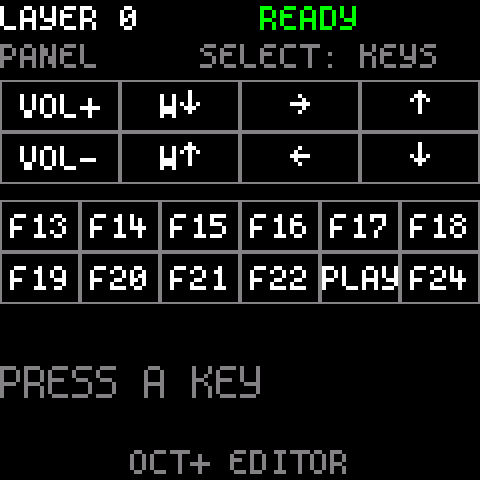
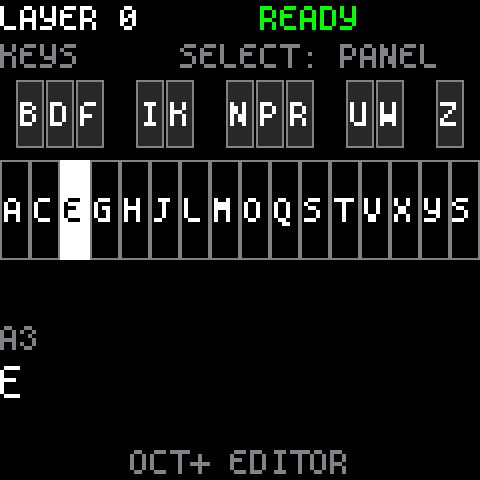
- A live legend on the screen: the FM-1's printed labels mean nothing as a keyboard, so the screen always shows what each control does on the current layer.
- Per-key lights: each button and key has a light style per layer (off, dim, mid, on, breathe, blink), or automatic (brighter for modifiers, layers and macros).
- The configuration is kept in the FM-1's flash and survives power cycles and reinstalls of the stock firmware.
- It stays a USB-MIDI device too, so the usual firmware installers keep working.
Installing
-
Install the stock V15 firmware first. The FM-1 community's rule: always go back to stock V15 before installing a different custom firmware. Get it from M-VAVE (
FM-1.fwsc) and install it with M-VAVE's updater or the installer below. -
Download the latest
trireme-fm1-v<version>.fwscfrom the Releases page. -
Install it like any FM-1 firmware package. With felucca-bsp's installer (Python 3,
pip install mido python-rtmidi; on Linux you may needsudofor MIDI access):python3 fm1_install.py trireme-fm1-v0.1.1.fwscThe installer is in this repository at
third_party/felucca-bsp/tools/fm1_install.py.Release packages are built on GitHub from the tagged source by The Firmware Hub's shared workflow, which signs a build attestation (provenance). To check that a package is exactly the one built from this repository (needs the GitHub CLI):
gh attestation verify trireme-fm1-v0.1.1.fwsc --repo ignis32/trireme_fm1 \ --signer-workflow zvenson/fm1-build/.github/workflows/build.yml -
The FM-1 restarts as FM-1 Keyboard. The screen says
READYwhen the computer has accepted it.
Going back to stock
Install the stock V15 package the same way. The keyboard configuration stays in flash, untouched, for the next time.
The method I actually use to get back to stock reliably is the installer on Baud Girl's website (Chrome or Edge).
If the firmware ever does not start: hold OCT+ while powering on (or hold OCT- and OCT+ together for 10 seconds while it runs). The FM-1 enters update mode and accepts any firmware package. After two failed starts in a row it enters update mode by itself.
The controls
| Control | What it does |
|---|---|
| Note keys, FX ... EDIT, GLO, HOME ... REC, KNOB1-4 | Yours to assign (keys, shortcuts, media, mouse, layers, macros, ...) |
| PRESETS | Switches the layer (0-4) |
| SELECT | Flips the legend between the buttons and knobs page and the note keys page |
| OCT+ | Opens the editor |
| OCT- + OCT+ held 2 s | Unlocks Vial, when Vial asks |
| OCT- + OCT+ held 10 s | Update mode |
| OCT- held at power-on | MIDI only: no keyboard on USB |
| OCT+ held at power-on | Update mode |
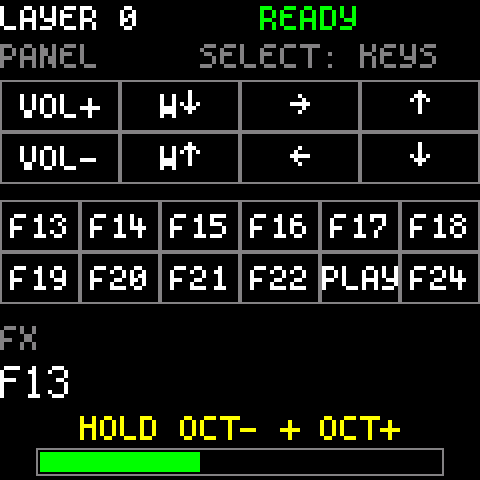
The screen shows the layer, the USB state and the legend. The last control you used is highlighted for two seconds and its full meaning is shown below the legend.
Default layout (layer 0)
| Controls | Keys |
|---|---|
| Note keys, lowest to highest | A ... Z, then Space |
| FX ... REC (12 buttons) | F13 ... F22, PLAY = play / pause, REC = F24 |
| KNOB1 | Volume |
| KNOB2 | Mouse wheel |
| KNOB3 | Left / right arrow |
| KNOB4 | Down / up arrow |
Layers 1-4 start empty: every control falls through to layer 0.
Configuring with Vial
Open the Vial app or vial.rocks in Chrome or Edge with the FM-1 connected. It finds FM-1 Keyboard and shows its layout. Everything is saved to the FM-1 a few seconds after the last change.
To change macros (or assign the bootloader key), Vial asks to unlock the keyboard: hold OCT- and OCT+ together for 2 seconds (a bar fills on the screen).
On Linux, Vial needs a udev rule to see the keyboard (the standard one from the Vial docs):
export USER_GID=`id -g`; sudo --preserve-env=USER_GID sh -c 'echo "KERNEL==\"hidraw*\", SUBSYSTEM==\"hidraw\", ATTRS{serial}==\"*vial:f64c2b3c*\", MODE=\"0660\", GROUP=\"$USER_GID\", TAG+=\"uaccess\", TAG+=\"udev-acl\"" > /etc/udev/rules.d/99-vial.rules && udevadm control --reload && udevadm trigger'
The FM-1's own functions are custom keycodes in Vial's User tab: LAYER- and LAYER+ (step through the layers) and KB OFF (stops sending keys to the computer; press it again to turn them back on).
The on-device editor
Press OCT+. The hint line at the bottom always says what OCT- and OCT+ do next.
1. Choose a control. Press any key or button, or turn a knob in the direction you want to change. It is highlighted and its current meaning is shown. PRESETS picks the layer to edit. SELECT picks what to do with it:
| Action | What it does |
|---|---|
| EDIT | Change it (the default) |
| COPY / SWAP | Copy it to, or swap it with, another control |
| CLEAR | Make it empty (falls through to the layers below) |
| DEFAULT | Back to the default layout |
| COPY LAYER / CLEAR LAYER | The whole layer at once |
| INFO | Firmware version, the number of saves, the configuration size |
| LED TEST | Every light on |
OCT+ does it, OCT- leaves the editor.
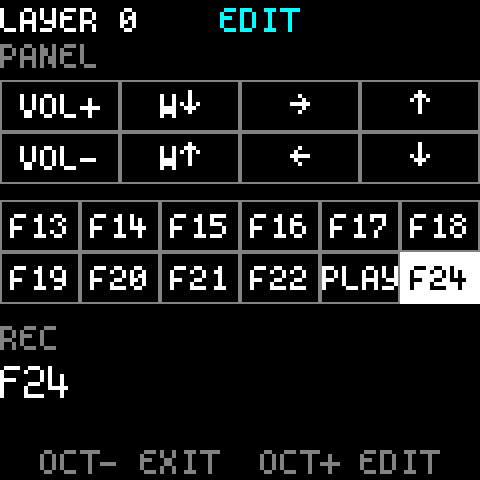
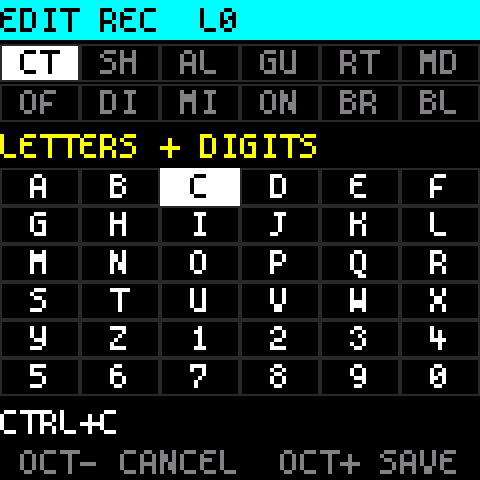
2. Edit it. The screen becomes a grid of values:
- PRESETS: the category (letters and digits, symbols, edit / navigation, F-keys, numpad, media, mouse, layers, macros, tap dance, FM-1, ...).
- SELECT: moves up and down through the grid (and its pages).
- ALGORITHM: moves across.
- The white note keys jump straight to a page of the grid; the lit ones have a page.
The buttons become tools, labelled in the two strips at the top of the screen:
| Buttons | In the editor |
|---|---|
| FX SEL ENV LFO EDIT | Ctrl, Shift, Alt, GUI (Windows / Command key), Right (use the right-hand modifiers) |
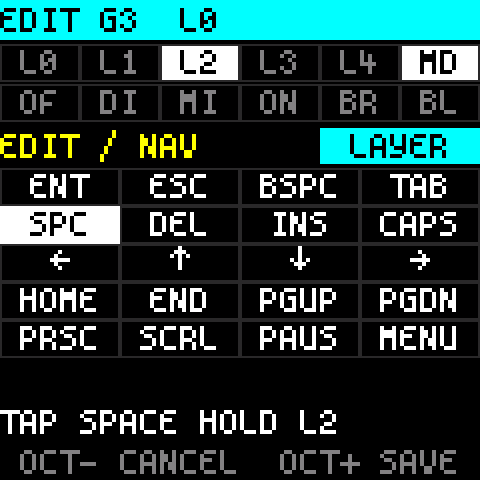
| GLO | Mode: WITH (modifiers held with the key), HOLD (the key when tapped, the modifiers when held), ONE-SHOT (the modifiers apply to the next key), LAYER (the key when tapped, a layer when held: FX ... EDIT then pick layer 0-4) |
| HOME ... REC | Light: OFF, DIM, MID, ON, BREATHE, BLINK; press the selected one again for automatic |
The control's own light previews the light style you pick. The line under the grid says the result in words ("CTRL+C", "TAP SPACE HOLD L2"), or why a combination cannot be saved.
OCT+ saves, OCT- cancels. Both go back to step 1.
Layer keys (category LAYERS): HOLD (the layer while the key is held), ONE-SHOT (for the next key press), GO TO (switch to it), TOGGLE (switch to it until the same key is pressed again).
What the editor cannot do: write macros, tap dances and combos, or change the QMK timing settings. It can assign existing macros and tap dances to keys; use Vial to write them. Anything set in Vial that the editor cannot show is kept as it is.
Building
You need Linux (or WSL), make, GCC (for the PC tests), Python 3, and:
- The JieLi Linux toolchain: jieli-linux-toolchains
(tested with 20250324.1 and 20260730.1: both give the same package). Unpack it;
TCis the directory withpi32v2/andcommon/in it. - The JieLi AC79 SDK (Apache-2.0), only for building the package: felucca-bsp's
tools/get_sdk.shfetches the tested revision into~/.jieli/ac79-sdk.
git clone --recursive https://github.com/ignis32/trireme_fm1
cd trireme_fm1
third_party/felucca-bsp/tools/get_sdk.sh             # the SDK, into ~/.jieli/ac79-sdk
make package TC=/path/to/jieli-linux-toolchains      # build/fw-raw/fm1kbd-raw.fwsc
make release                                         # build/release/: trireme-fm1-v$(VERSION).fwsc + SDK licence
make test                                            # the tests on the PC
make screens                                         # the screen pictures as PNGs (needs Pillow)
Put TC := ... and AC79_SDK := ... in a local.mk file to avoid typing them. The default TC is
~/.jieli/toolchain.
make test runs the USB descriptor checks, the key engine and Vial protocol tests, the flash storage tests
(including power cuts at every step of a save) and the screen and editor tests. With a checkout of
vial-gui in refs/vial-gui it also drives the firmware's Vial code with
vial-gui's own protocol code.
FLAVOR=console builds a variant with a USB serial console instead of Vial, for development.
Releases
Releases are never built or uploaded by hand. Set VERSION in the Makefile, commit, and push the tag v$(VERSION):
.github/workflows/release.yml hands the build to zvenson/fm1-build @v1,
which runs make release and make test, attests the files in build/release/ and publishes them as the tag's
release. Running the workflow by hand (Actions → release → Run workflow) builds and attests without releasing.
Layout
| Path | What |
|---|---|
firmware/main.c | Boot, the main loop, LEDs, screen hooks |
firmware/kbcore.c | The key engine (layers, tap / hold, combos, macros) and the Vial protocol |
firmware/store.c | The configuration in flash (two copies, power-cut safe) |
firmware/editor.c, ui.c, gfx.c | The on-device editor, the screens, the drawing |
firmware/usb.c | felucca-bsp's USB driver with HID added (patches/usb-hid.patch) |
firmware/vial.json | The Vial definition (built into the firmware) |
tests/ | The PC tests |
tools/ | Build helpers, vialcli.py (keys and macros from the command line) |
third_party/felucca-bsp | The FM-1 board support (git submodule) |
Licence and credits
GPL-3.0 (LICENSE). The firmware includes felucca-bsp's usb.c, which is GPL-3.0-only.
felucca-bsp's licensing is not final. It is being split out of Felucca, and its own
LICENSING.md says the licences are provisional
until every contributor involved has answered. The intended licences are MPL-2.0 for most files and GPL-3.0-only for
usb.c. This firmware is GPL-3.0 as a whole, which fits either outcome, but the state of felucca-bsp's files may
change.
- felucca-bsp by Leo Kuroshita / Hügelton Instruments (MPL-2.0,
usb.cGPL-3.0-only), split out of Felucca: chip and board support, the update loader, the package builder and installer. - Spleen fonts by Frederic Cambus (BSD-2-Clause, notice in
firmware/font.h). - Keycode numbers from vial-qmk (QMK / Vial protocol).
- Firmware packages contain three files of the JieLi AC79 SDK (Apache-2.0); its licence text goes with every released package.