
Launchpad Pro
Open-source firmware for the Novation Launchpad Pro grid controller! This project is based on dvhdr's launchpad-pro project.
This firmware was developed for use with Reason Studio's Reason DAW.
Installing the Firmware
If you can't (or don't want to) build the project from source, you can simply send the launchpad_pro.syx file (in the build directory) to your Launchpad Pro.
I use MIDI-OX to send the firmware through, but there are other tools that can do that too.
- Turn off your Launchpad Pro
- While holding the "Setup" button, turn on your Launchpad Pro
- Launch MIDI-OX
- Select your Launchpad Pro as an Output device (Options - Midi Devices - Midi Outputs)
- Actions - Send - SysEx file
- Select the sysex file (
launchpad_pro.syx) - Wait for the send to complete
- Done!
Installing the Reason Remote Map
For use with Reason, you will also need to install the Remote mapping files:
reasonlpp.midicodecreasonlpp.remotemap
On Windows, these are the paths where to install those files:
C:\ProgramData\Propellerhead Software\Remote\Codecs\MIDI Codecs\reasonlpp.midicodecC:\ProgramData\Propellerhead Software\Remote\Maps\Other\reasonlpp.remotemap
Usage
For a quick visual example and explanation of this firmware's feature, see the demo video here:
[TBD]
Global Utilities
Modes
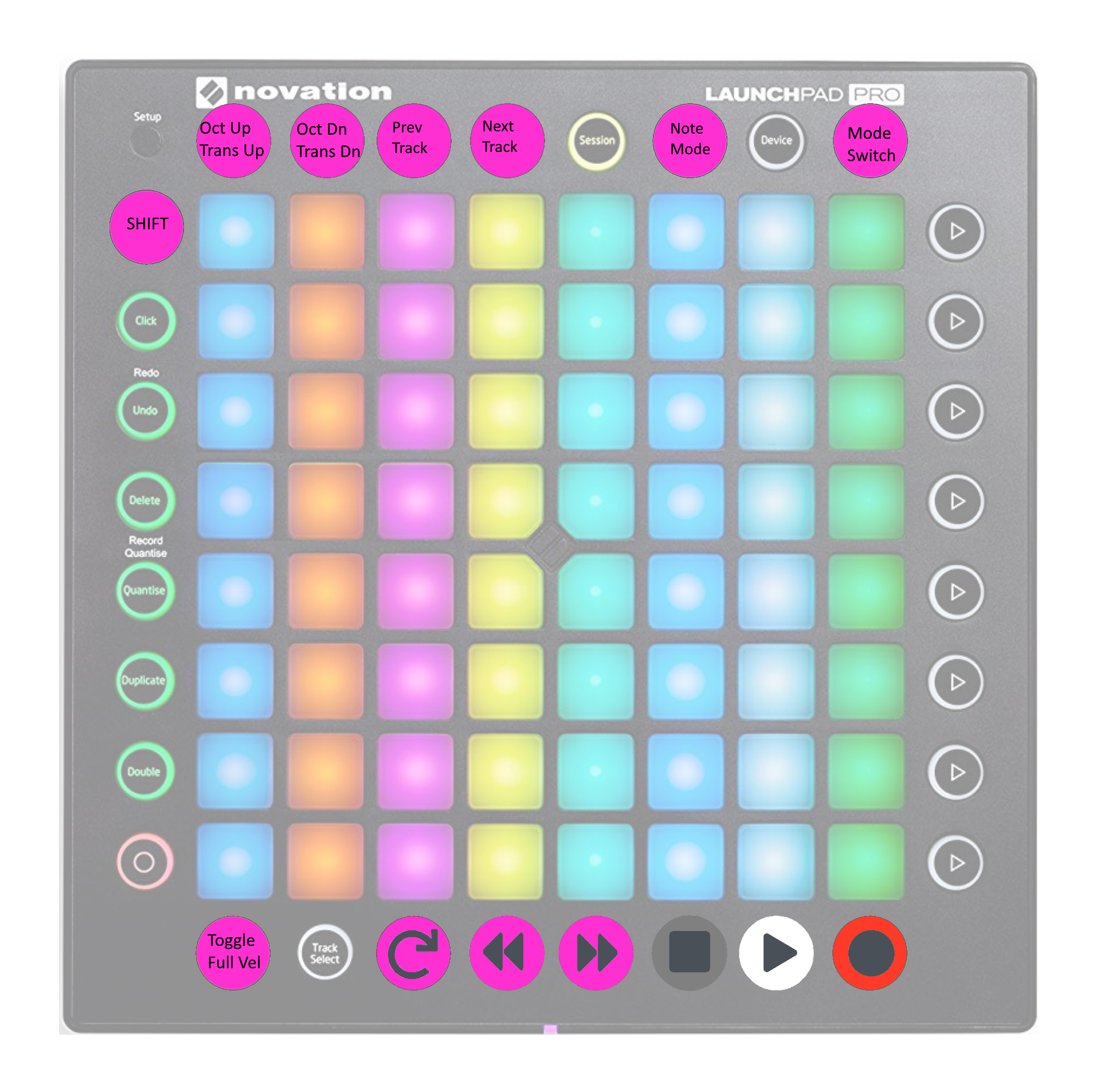
Cycle through the modes by pressing the Mode Switch button (labeled User on the LPP).
Toggle keyboard/kong note mode by pressing the Note Switch button (labeled Note on the LPP).
MIDI Transport Controls
MIDI transport buttons are defined on the very bottom row.
- Toggle Loop:
Mutebutton on the LPP - Rewind:
Solobutton on the LPP - Fast Forward:
Volumebutton on the LPP - Stop:
Panbutton on the LPP - Play:
Sendsbutton on the LPP - Record:
Stop Clipbutton on the LPP
Velocity Toggle
The bottom-left button (labeled Record Arm on the LPP) toggles between full-velocity and velocity-sensitive modes for MIDI notes sent from the LPP.
Transpose
To transpose the notes sent by the LPP, use the Up and Down buttons (top-left of the LPP).
Up: Transpose one full octave upDown: Transpose one full octave downShift + Up: Transpose one semi-tone upShift + Down: Transpose one semi-tone down
Track Selection
To switch target tracks in Reason, use the Left and Right buttons (top row of the LPP).
Modes
Notes
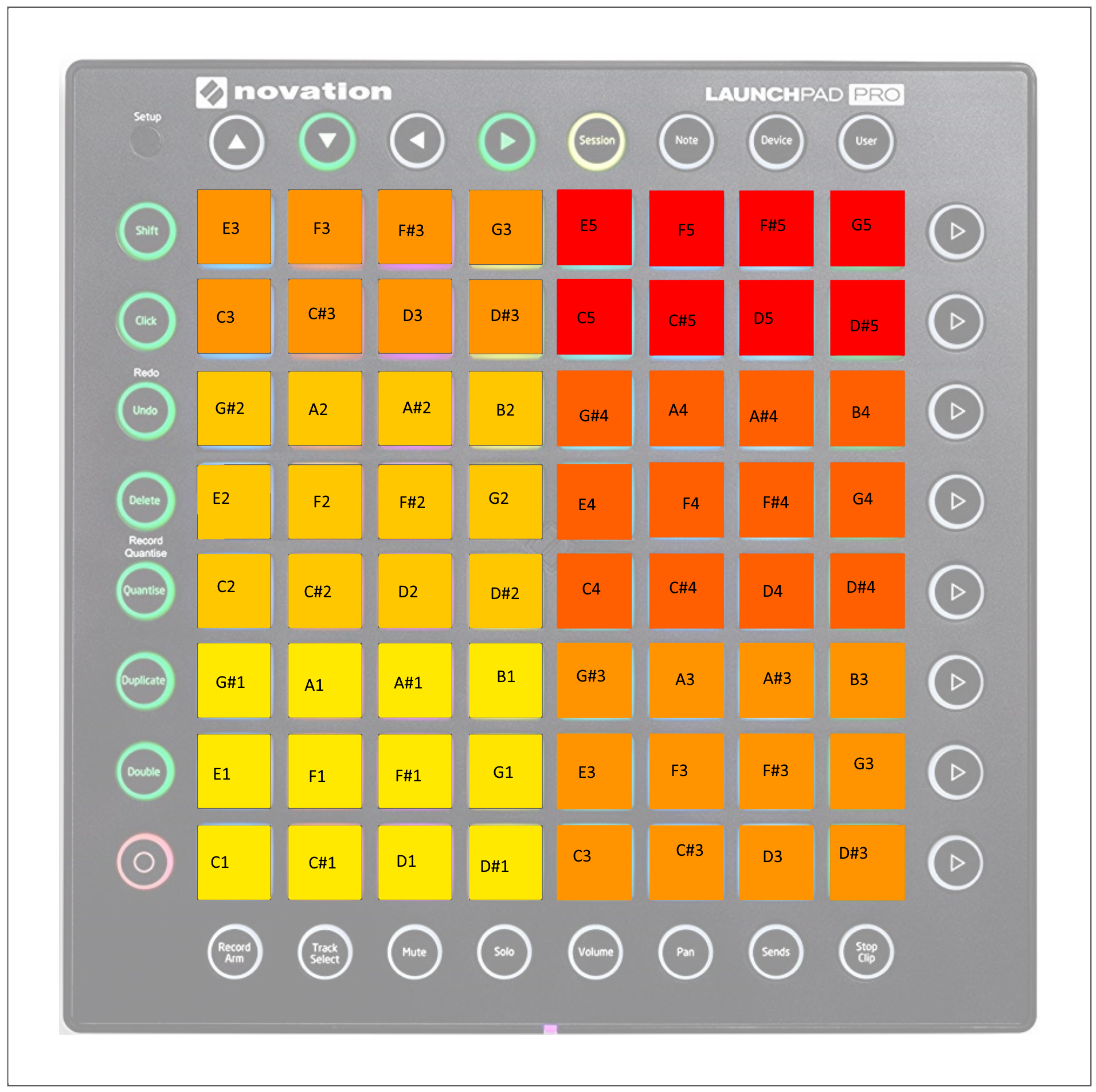
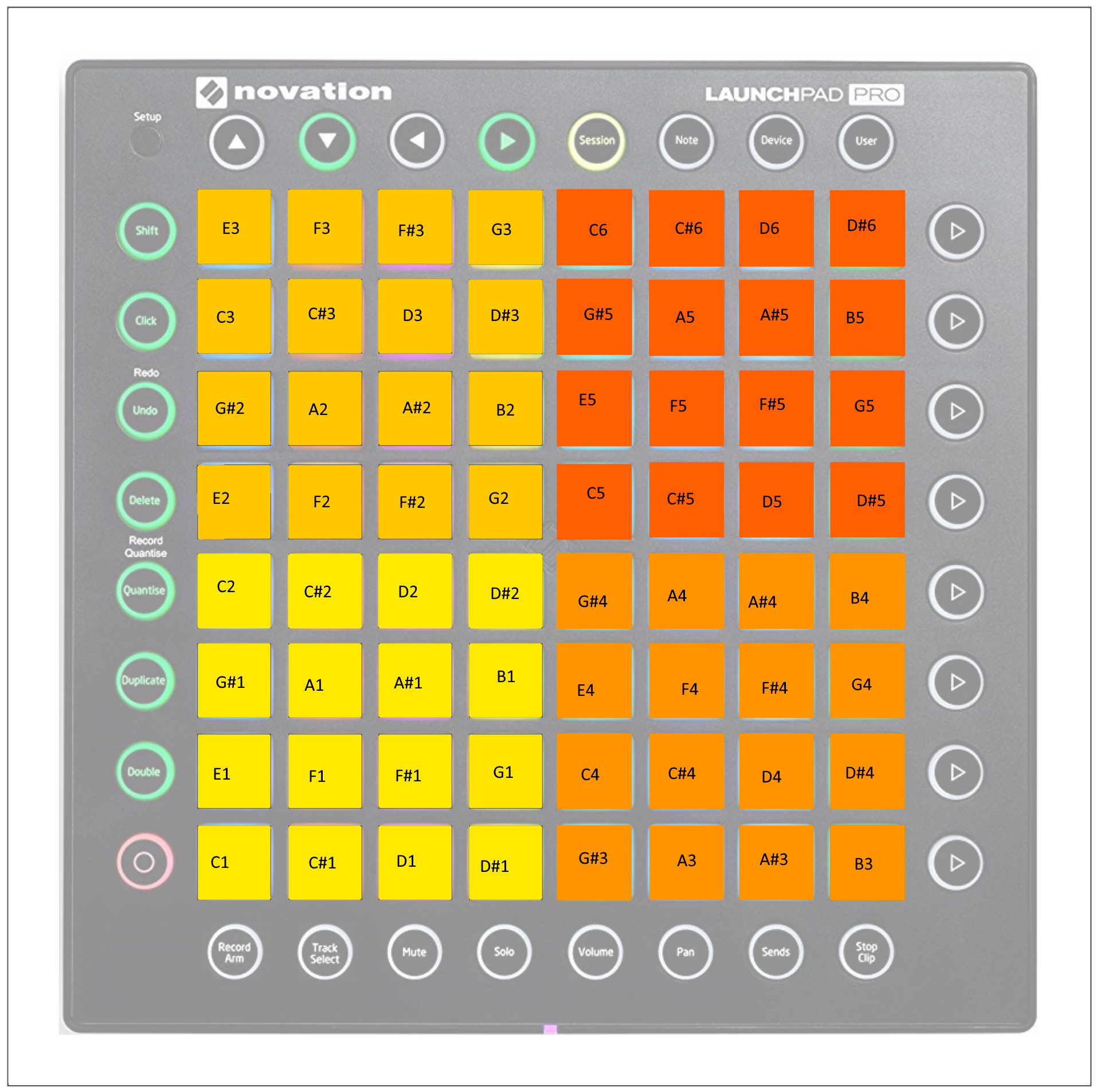
This is the default mode for the LPP. In this mode, each square pad is a note.
In "Keyboard" note mode, each color represents one full octave. In "Kong" note mode, each color is a set of 16 MIDI notes, allowing you to set up one combinator with four Kongs, each responding to a set of 16 square buttons.
Keyboard Note Mode
Kong Note Mode
Combinator
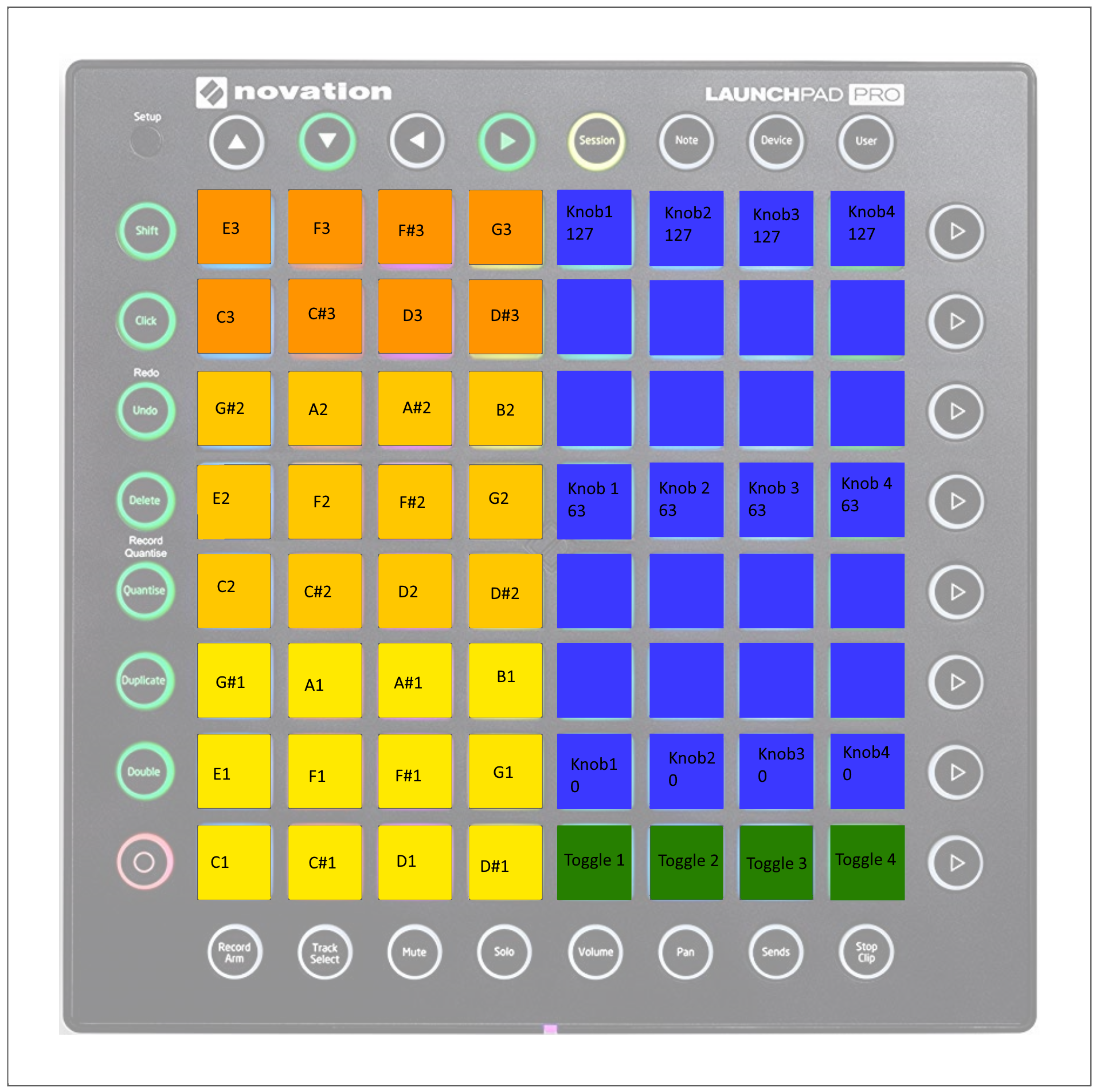
In this mode, the left half of the square buttons represents a keyboard (or two Kongs). The right half is used to control the Combinator's rotary and toggle controls.
X/Y
In this mode, the full grid represents a two-dimensional control for two CC values.
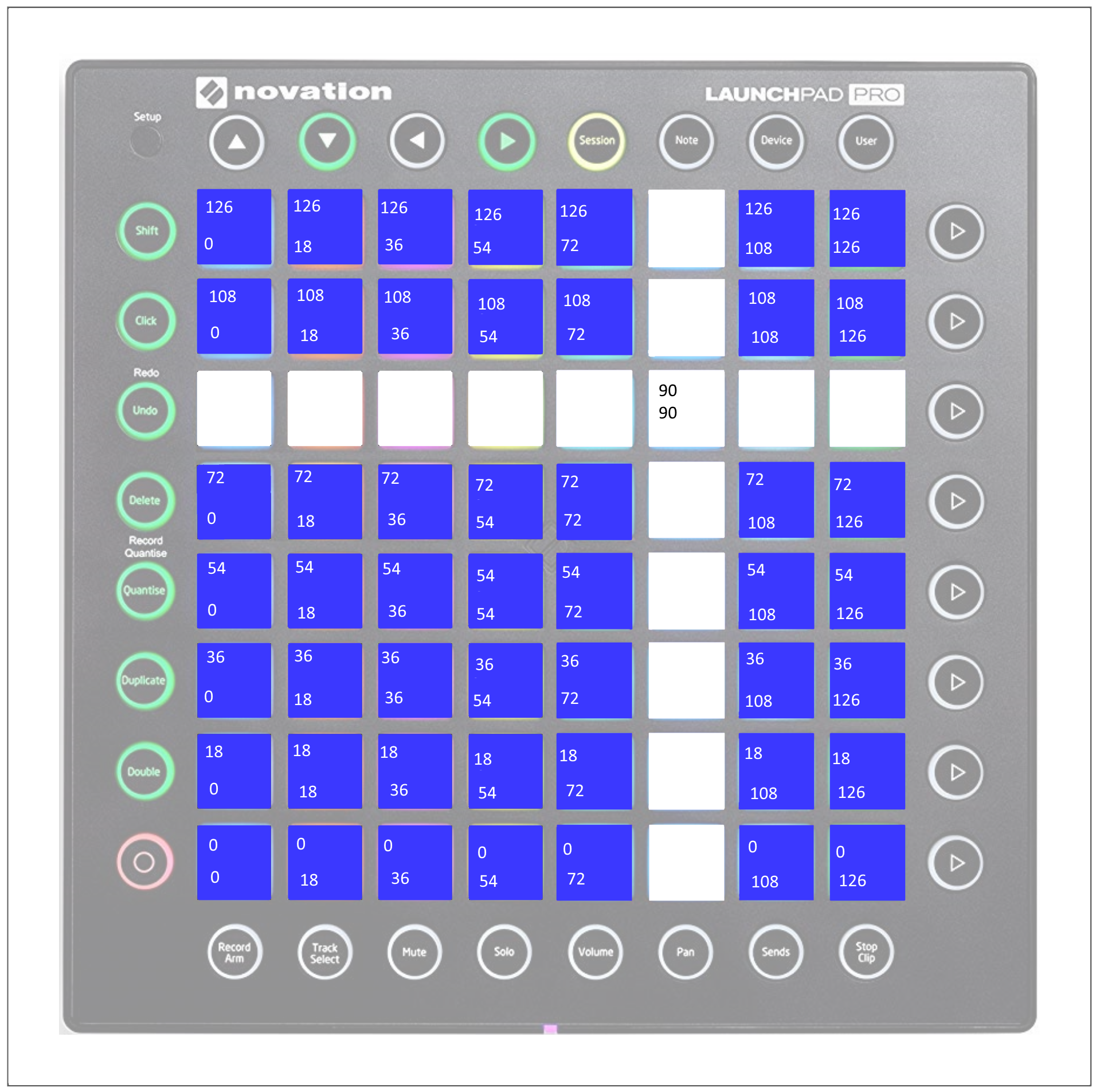
When targeting a Combinator, X is Rotary 1 and Y is Rotary 2.
Mixer
Mixer 14:2
When targeting a Mixer 14:2, the blue buttons represent the first eight channel volumes on the mixer and the green buttons represent the "Solo" toggle for the first eight channels on the mixer.
Line Mixer 6:2
When targetting a Line Mixer 6:2, columns 1-6 of blue buttons represent the first six channel volumes, column 7 controls the main Aux return level, and column 8 controls the master volume on the mixer. The first six green buttons control each channel's "Solo". Green buttons 6 and 7 do nothing.
MIDI Implementation
CC Values
MIDI Transport
MIDI transport uses the following CCs:
- Play:
16 - Stop:
10 - Record:
12 - Loop:
13 - Rewind:
15 - Fast Forward:
14 - Previous Track:
20 - Next Track:
21
Combinator Mode
In Combinator mode:
- Faders (blue pads) control CCs
44through47 - Toggles (green pads) control CCs
54through57
Mixer Mode
In Mixer mode:
- Faders (blue pads) control CCs
40through47 - Toggles (green pads) control CCs
50through57
X/Y Mode
In X/Y mode:
- X controls CC
44 - Y controls CC
45
Notes
Aftertouch
Each note pad is aftertouch-sensitive, sending MIDI aftertouch based on pad pressure.
Interpolation
Since the fader/rotary controls have a limited resolution, I implemented progressive CC changes where appropriate. This means that moving a fader between 0% and 100% will not happen instantaneously, but smoothly. This avoids unintended glitchy parameter changes.
Rolling Back/Factory Reset
If for whatever reason you want to go back to the original setup of your Launchpad Pro, you can flash the factory firmware by following the instructions here: