MPC Live / Force firmware with mouse support(!)
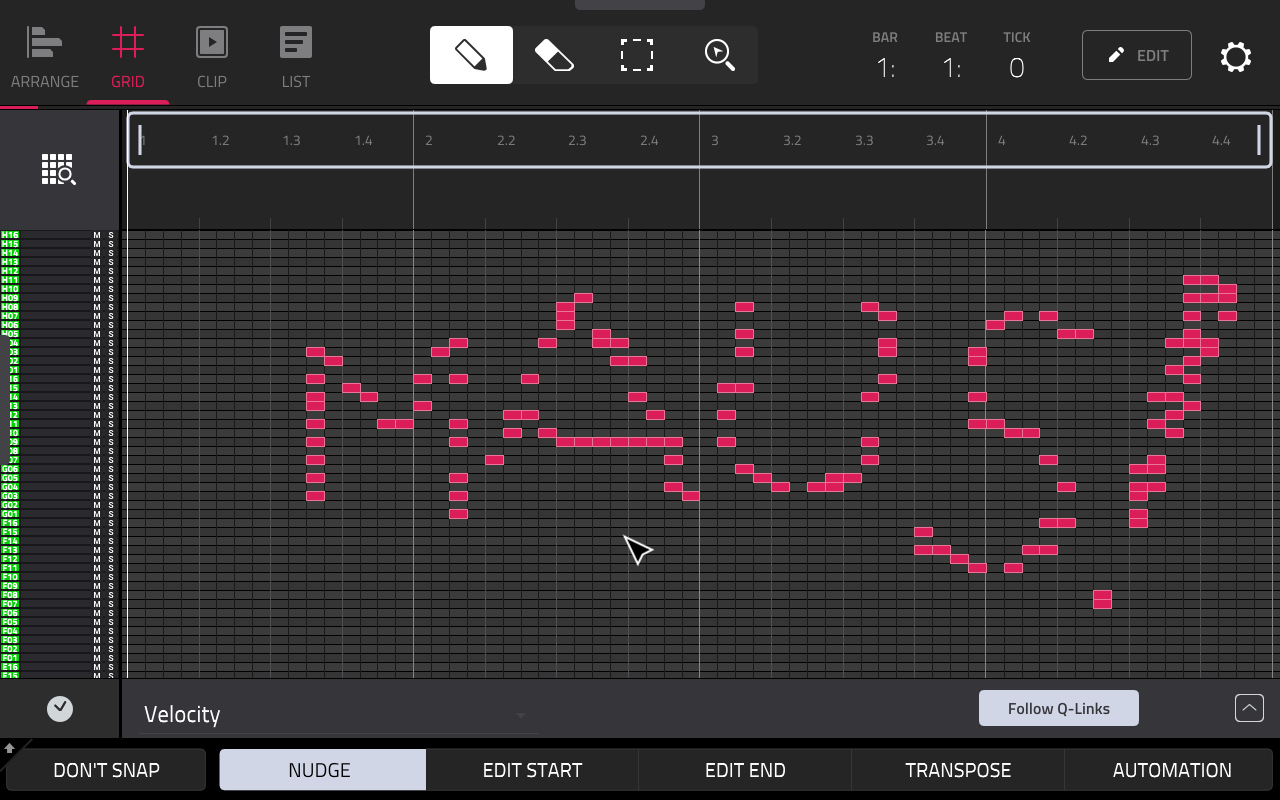 Modified AKAI MPC and FORCE firmwares with SSH and mouse control enabled.
Credit for the SSH tools goes to TheKikGen, mouse addon credit goes to no3z on the Mockba Mod discord and Amit Talwar.
The modifications and scripts are under various open source licences, but the original content in the firmware is © InMusic, Inc. and it's subsidiaries.
How do I install this
Download the firmware for your device and put the downloaded file into the root of your USB stick or SD card. Then in the device, go to Preferences and tap the button that says upgrade and select "USB Drive Update". It should recognize the file and prompt you about installing it.
Ok I tried it, how do I get back
You can install any official firmware provided by AKAI and it will overwrite any changes made by these hacked firmwares.
What is this
This is the same firmware you get from AKAI, except it has SSH and mouse enabled. Nothing else is modified, all functionality is still the same. You can use SSH to move and edit files in the internal file system and a mouse for more precise editing.
Configuration
There is no configuration you need to do, stuff should work out-of-the-box and into the box. The mouse has a configuration file located in /etc/force_cursor.conf where you can set the speed of the cursor, but it shouldn't be necessary.
What not to do
I take no responsibility or be held liable when your precious InMusic bleep bloop box explodes if you use these firmwares. It will and you are warned. InMusic Brands are also completely out of this as installing a modified 3rd party software into the machine effectively voids warranty.
Do not mess with the internals. You can move and delete stuff to your liking but when you do, you will probably brick your machine into a state where it can not be recovered anymore.
You probably injected some spy software into the firmware
I'll provide all the tools here in this repository so you can do the modifications yourself if you want to be absolutely sure of what is going into the package. You can also decompress the firmware and do a diff against the official stock to see all the files and file entries.
The modifications are really minimal. Opening permissions for SSH, copying necessary networking files from the host, injecting a preload into the systemd service of the MPC OS so we can capture the DRM (Direct Rendering Manager) thread that hides the mouse cursor and adding the library that actually draws a cursor on screen.
How to do it yourself
In the "ssh" folder you'll find all the tools you need to patch a firmware yourself. I wrote a shell script that handles modifying the contents so you don't need to do it by hand. Read through it carefully, so you get the idea of what it does and if there is a need to change file paths. I did my patching in Ubuntu 24.x, other distros might have some differences in their systems. You only need a couple of files, so it should be relatively straightforward. If it doesn't work, welp. 🤷
- Download the ssh folder on to your machine
- Download the stock firmware from AKAI
- Put the downloaded firmware into the ssh folder, next to the shell script
- Decompress the firmware into a file called "mpc.img" with mpcimg2 from TheKikGen with the command (MPC-update.img is just an example here, replace with the name of the actual file you donwloaded):
./mpcimg2 -r MPC-update.img mpc.img
- Run the shell script that will mount and modify the firmware with:
sudo bash ssh_image.sh mpc.img
- Then pack the firmware back into the format the device expects (decompressing and compressing has been removed in Gen2 devices, I'll have a look at it at some point):
./mpcimg2 -m MPC-update.img mpc.img MPC-mouse-ssh-update.img
- Copy the generated firmware file on to your SD card or USB stick and install it to your machine.
I've heard of these SSH firmwares, do I need to use one?
No. The box will work fine with the stock, this just adds bells and whistles that one does not need in every day workflow. Do not install these if you have a liveshow coming up or you're in the middle of a critical production.
Remember, when the blue smoke comes out of the machine, you'll know that the genie is finally free and it takes the life of the device with it.
You lied. I connected my mouse and I'm not seeing anything
- Make sure your mouse is connected before you boot up
- Look in the configuration file that your mouse matches the device path and correct if necessary
- Pray to the Red AKAI Gods to give you mercy and get it working