Harmonic Shift Operator
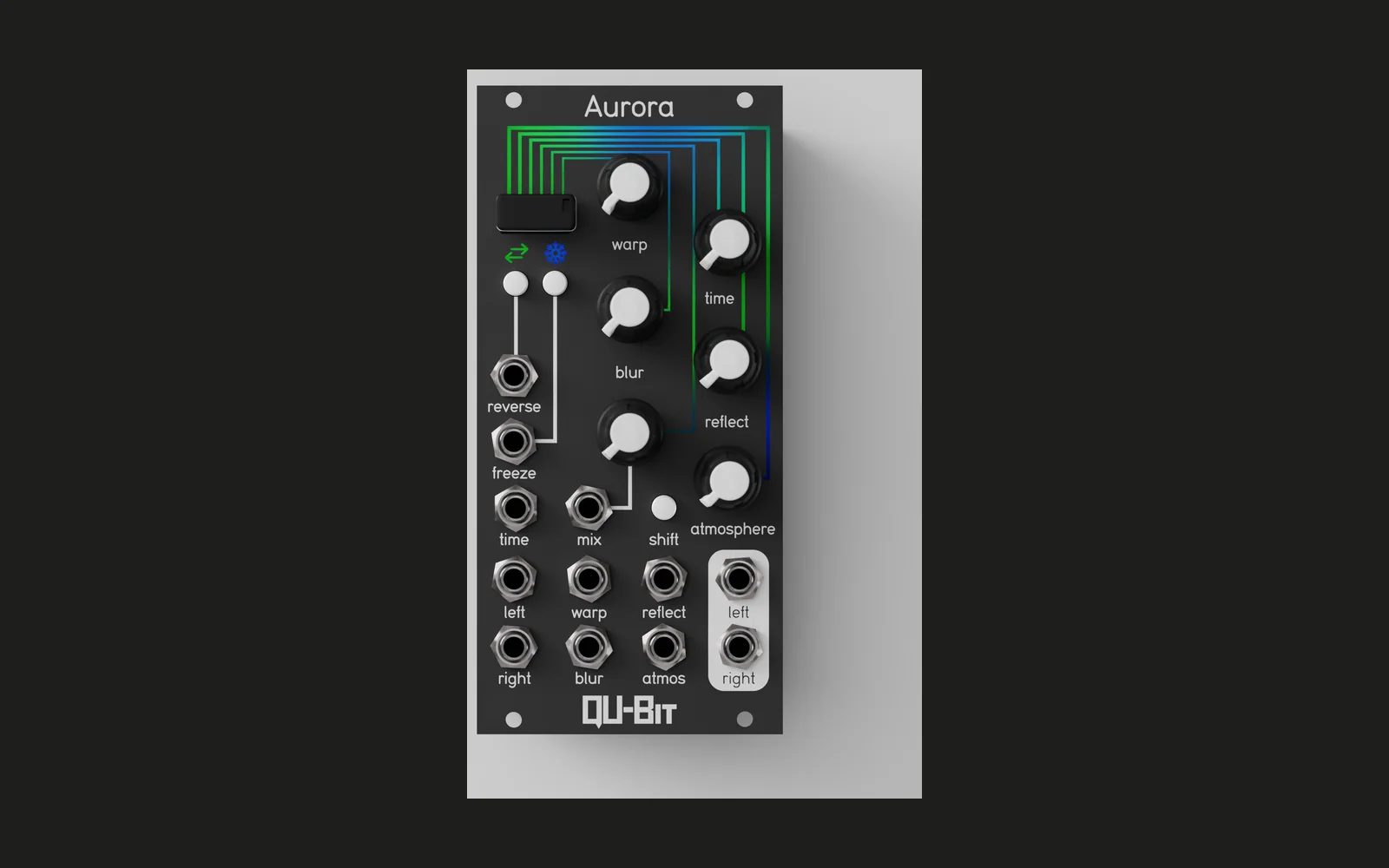
A stereo, self-oscillating spectral filter firmware for the Eurorack module Aurora by Qu-Bit Electronix, inspired by the Harmonic Shift Oscillator by New Systems Instruments.
A sound demo showing off some of the use-cases for this firmware can be found here.
About This Firmware
Harmonic Shift Processing
As with the original HSO (oscillator, not operator), a frequency can be set (Warp/Time), along with a stride (Reflect) and level (Atmosphere). Stride indicates a multiplier factor for the distance between harmonics of the base frequency. Level indicates a ratio between the relative amplitudes given to each of these frequencies. The twist provide by this firmware is that each input signal is filtered to include only the frequency components matching the frequency and stride controls, at levels determined by the level control and the number of the targeted harmonic.
To achieve this processing, each of the input signals is processed with an FFT, to determine the frequencies that make up in the input. Each of the target frequencies (determined by the set frequency and stride) is then scaled (based on the level and harmonic number) and all other frequency content is removed.
As an example, say the left channel's input is a sum of five sine waves, at 300 Hz, 400 Hz, 600 Hz, 800 Hz, and 1200 Hz. Suppose frequency = 300 Hz, stride = 1, and level = 0.5. The left output signal should then contain the full-amplitude 300 Hz wave plus a half-amplitude 600 Hz wave, plus an eighth-amplitude 1200 Hz wave, summed together. However, if frequency is set to 100 Hz, stride is set to 3, and level is set to 1, the output will be only the full-amplitude 400 Hz wave (100 + 3*100).
Frequency (Warp/Time) Controls
The frequency is controlled using coarse (Warp knob) and fine (Time knob) controls. It can be modulated via exponential FM (Warp CV input, which tracks V/oct with a range of +5/-5 octaves), and linear FM (Time CV input, with a range of 20% of the frequency).
Resonance (Blur) Controls
The resonance control (Blur), boosts the level of the base frequency components and, if level is above zero, proportionally boosts the following frequencies as well. When the knob is past 50%, "self-oscillation" will occur, outputting waves similar to the original HSO, controlled by stride and level as expected. However, unlike the original HSO which theoretically generates all such harmonics, this firmware only generates a fixed number of partials (currently 8, including the fundamental). However, as the resonance is pushed further (or if the output level is higher due to also processing a signal, the output waves are then folded, leading to additional harmonics.
Stride (Reflect) Controls
The stride control (Reflect) ranges from 0 to 5, indicating the multiplier for subsequent harmonics. With stride at 0 and level at 1, all frequencies above the frequency are passed, creating a kind of brick-wall high-pass filter. When self-oscillating, the stacked oscillations are so close together that slow beat frequencies can be heard, leading to wobbling sound that can be adjusted with small changes to the knob position.
Negative Stride and Through-Zero Modulation
Unlike the original HSO, the stride control can go negative, in which case sub-harmonics are targeted, acting as a multiplier of divisions of the base frequency. Given the example above, say frequency = 1200, stride = -1, and level = 0.25. The output for would then be the full-amplitude 1200 Hz wave, a quarter-amplitude 600 Hz wave, and a sixteenth-amplitude 300 Hz wave.
With the CV input, Stride can modulated "through-zero" and become negative. This moves the targeted frequencies from above the base frequency and shifts them below it instead. Particularly with level below 1, this creates a stationary central frequency as the other partials move around it.
Level (Atmosphere) Controls
The level control ranges from 0 to 1 and sets the multiplier of the amplitude of successive partials, both for processing and self-oscillation. At 0, no partials are considered, reducing the focus to a single frequency/FFT bin. At 1, all partials will be equally present. Since anything below 1 will have an exponential falloff, the moment the value reached 1 can have a sudden effect when processing an input signal.
Reverse and Filter (Freeze) Controls
The reverse button toggles between this standard mode and a reversed mode in which stride becomes negative and targets sub-harmonics instead. With stride at 0 and level at 1, all frequencies below the frequency are passed, creating a brick-wall low-pass filter. This can also be achieved without reverse, by sending a negative CV value to the stride (Reflect) CV input. In general, the knob and CV values are added together. If reverse is active, this value is then negated. Sub-harmonics are targeted whenever this final value is negative.
The freeze button activates a more explicit filter mode, altering the behavior of the stride and level controls with respect to input processing. As resonance increases, the cutoff frequency level is boosted, which other passed frequencies are at unity gain. Increasing stride spreads the cutoff boosting to adjacent FFT bins, while level controls the drop-off of this adjacent boosting. With stride and level at maximum, a flat boost will be applied at the edge of the pass band. When resonance is boosted to self-oscillation, the stride and level controls still affect the generated wave-shape, allowing for a wide range of possible sounds, even without modulating the frequency. Depending on the input signal, resonance can boost the signal enough to lead to some wave folding, even before self-oscillation kicks in.
The states of the reverse and freeze buttons can be temporarily toggled
with gates to their respective CV inputs. Pressing the button inverts the way
these gates are interpreted. The user-selected state is the default, and a high
signal to the CV switches to the opposite state until the signal goes low again.
These user-selected reverse and freeze states are also saved to the USB drive
(assuming it is present) to a file called HSO.txt, and loaded on startup.
Mix Controls
The mix control works as one might expect, fading from the dry signal (CCW) to the wet signal (CW). Because the processing introduces a delay, the input signal is delayed by the same amount to ensure the signals being mixed are in-sync.
Shift Button
A design goal for this firmware was to keep the interface as knob-per-function as possible. However, this meant that the shift button was left unused. But it's there, so as a bonus, pressing the shift button will trigger an attack-decay envelope. This does three things simultaneously: (1) increase the gain going into the wave folder, (2) add an offset to each channel (positive for the left channel, negative for right) pre-wave-folder, leading to asymmetrical saturation/wave folding, and (3) shifts the mix balance toward fully wet. The primary use of this is to trigger a manual percussive hit which, depending on the settings, can range from soft and bell-like to harsh and noisy. It can also be useful in a feedback loop to give the system a kick after it has died off.
Changing Envelope Settings
The envelope settings can be edited using the file HSO.txt. This will be
automatically created to track the reverse/freeze settings of the last run, but
the following properties can be added to edit the shift envelope:
| Setting | Description | Default Value |
|---|---|---|
| SHIFT_ATTACK | Attack stage time in seconds. | 0.1 |
| SHIFT_DECAY | Decay stage time in seconds. | 1.9 |
| SHIFT_CURVE | Envelope curve, -100 (exp) to 100 (log). | -5 |
| SHIFT_GAIN | Total gain increase at maximum envelope value. | 5 |
| SHIFT_OFFSET | Maximum offset applied to each channel. | 0.5 |
Envelope Settings Mode
For convenience, it is also possible to change the settings using the shift button itself. Holding the shift button for more the 0.5 seconds will cause the module to enter an envelope settings mode, indicated by all LEDs becoming pink. Continue holding the shift button and adjust the knobs to change the envelope settings (see table below). Once the knob is turned the LEDs will begin to track the currently edited setting value, pink for positive values, off for zero, and purple for negative values.
| Setting | Knob | Min | Max |
|---|---|---|---|
| Attack (seconds) | Reflect | 0.1 | 10 |
| Decay (seconds) | Atmosphere | 0.1 | 10 |
| Curve | Mix | -20 | 20 |
| Gain | Blur | 1.0 | 10.0 |
| Offset | Time | 0.0 | 1.0 |
While the settings are being changed, the previously set parameters for normal processing will be preserved. These values will be preserved until the knob is next adjusted when not in the envelope settings mode. This means the shift button can be pressed to trigger the envelope, the shift button can be held to change the parameters again, and so forth, without the standard parameters changing.
Once the knobs are turned while not in envelope settings mode, the adjusted parameter will immediately jump to the new knob position and continue to track it from there as normal.
Envelope Reset
Pressing the reverse button while in envelope settings mode will reset all envelope settings to their default values, immediately exit the envelope settings mode, and return to normal operation with the parameters all moved to the current knob positions. The LEDs will immediately change colors to indicate this, even if shift is still held. The shift button will need to be released and then pressed again order to trigger the envelope or change the settings.
LEDs
Finally the front-panel LEDs show estimates of the signal levels. The left channel LEDs are along the top, while the right channel LEDs are along the right. For each, the input signal level is shown in purple and the output level is shown in green (left-to-right, top-to-bottom). In cyan between them is the average of these two levels. As the output signals push into wave folding the green output LEDs will turn yellow when saturating/slightly folding, and then orange when folding is more pronounced. As folding increases further, the output LEDs will eventually go red and the cyan LEDs will turn white, a state which is all but certain to be very noisy. Note that this requires either an input signal, or CV increasing the resonance past the max knob control level.
The reverse and freeze button LEDs are white whenever their respective mode is active, and off when in the default state (e.g. if the user enables filter mode with the freeze button but also sends a high gate signal to the input, the light will be off).
Use Cases
(In-)Harmonic Wave Extractor
Ensure that the freeze control is off (not lit up). Send a signal to the left (or left and right) inputs. Set stride and level somewhere in the middle of their ranges. Adjust the frequency until your hear output and adjust the parameters until you get something you like.
This can be a bit like filtering the input, but with a result that is almost always simple enough to be musical. Note, however, that the output level may be fairly low, since the targeted harmonics may already have a low level in the input signal. Experimenting with the resonance and level controls may help you dial in an appropriate output level.
It you want to lock onto specific partials of your input, the following process seems to work best. Use the coarse frequency (Warp) to find a rough starting point. Next adjust stride and level until you're getting close to the output you want. For example, there may be some desired partials going in and out. Finally adjust the fine tuning (Time) until you've zeroed in on an output you like.
There will likely always be some subtle movement to the sound, especially if level is fairly high, due to fact that the calculations for higher order harmonics (or sub-harmonics) are very sensitive to the frequency and stride values. It's best to view this as a kind of subtle chaotic modulation. :)
Harmonic Shift Oscillator with Wave Folding
Without an input signal, set the resonance (Blur) to about 60% (~1 o'clock) to yield HSO-style self-oscillation, controlled by the frequency (Warp/Time), stride (Reflect), and level (Atmosphere) controls. The left and right channel outputs are always 90 degrees out of phase with one another, as with the original HSO.
Between the coarse and fine tune (Warp and Time knobs), and the exponential FM (Warp CV, V/oct) and linear FM (Time CV) inputs, a wide array of harmonic and in-harmonic sounds are possible.
Pushing the resonance higher will start to push the signal into wave folding, adding further complexity to the generated spectrum. Given that many oscillation settings have a beating to them, this acts as a natural modulation to the wave folding level, which can be very nice.
It is also important to note that the wavefolding can get very aggressive as the gain increases, so it's best not to jump straight to turning the knob fully clockwise. That said, if you want even more, the resonance (blur) CV input can be used to push the resonance beyond what is possible with the knob alone.
Stereo Brick-wall Filter
Send a signal to the left (or left and right) inputs. Press the freeze button to enable filter mode (the button should light up). For a low-pass filter, press the reverse button until it is also lit up. For a high-pass filter, leave reverse disable. Now listen to the left and right outputs and adjust the other controls as desired.
Due to the sharp cutoff, you can often hear individual harmonics from the input signal drop off or appear as the frequency changes. Don't forget to use the resonance, stride, and level controls to change the behavior at and around the cutoff frequency.
Manually-triggered Wave Folding Synth Voice
Since the attack-delay envelope triggered by the shift button affects the mix setting, it is possible set the module up for manual "pings," akin to a synth voice made up of an oscillator, into a wave folder, into a VCA.
With no input, set the mix knob to the minimum (CCW) setting. Regardless of the other settings, this should yield silence since there is no input. Next set the resonance (blur knob) past noon to yield self-oscillation. The LEDs will light up, but there will still be no sound. Finally, press the shift button to trigger the envelope, yielding a one-off percussive hit.
Installing
Download the bin file (see Releases section). If compiling from source,
follow the steps below and find the binary at build/AuroraHSO.bin.
Place the .bin file on your Aurora's USB drive (make sure this is the only
.bin file in the base of the drive) and start the module with the USB
inserted. This should trigger the firmware flashing procedure and once the
white lights go away you should be good to go.
Building
If you would like to make changes to the firmware and build it yourself, you can follow the below instructions to get started.
When testing your changes, you may want to enable performance logging, which
writes timings of various sections of the code at a regular cadence to the USB
drive in a file called HSO.log. To enable this find the line:
#define LOG_ENABLED 0
And change the 0 to a 1. To disable logging again, change it back to a 0
and rebuild the project.
Windows / Mac OS
Follow the Daisy Toolchain installation
instructions.
Once you have that installed, run the following commands in a Terminal/Git
window, run ./make.sh. After the first time, you can simply run make to
compile any changes.
Linux
Install the packages dfu-util and gcc-arm-none-eabi
(gcc-arm-none-eabi-bin on Arch).
Then within this project run ./make.sh. This will compile the Aurora SDK
components as well as this project. After the first time, you can simply run
make to compile any changes.