FM-1 Grid
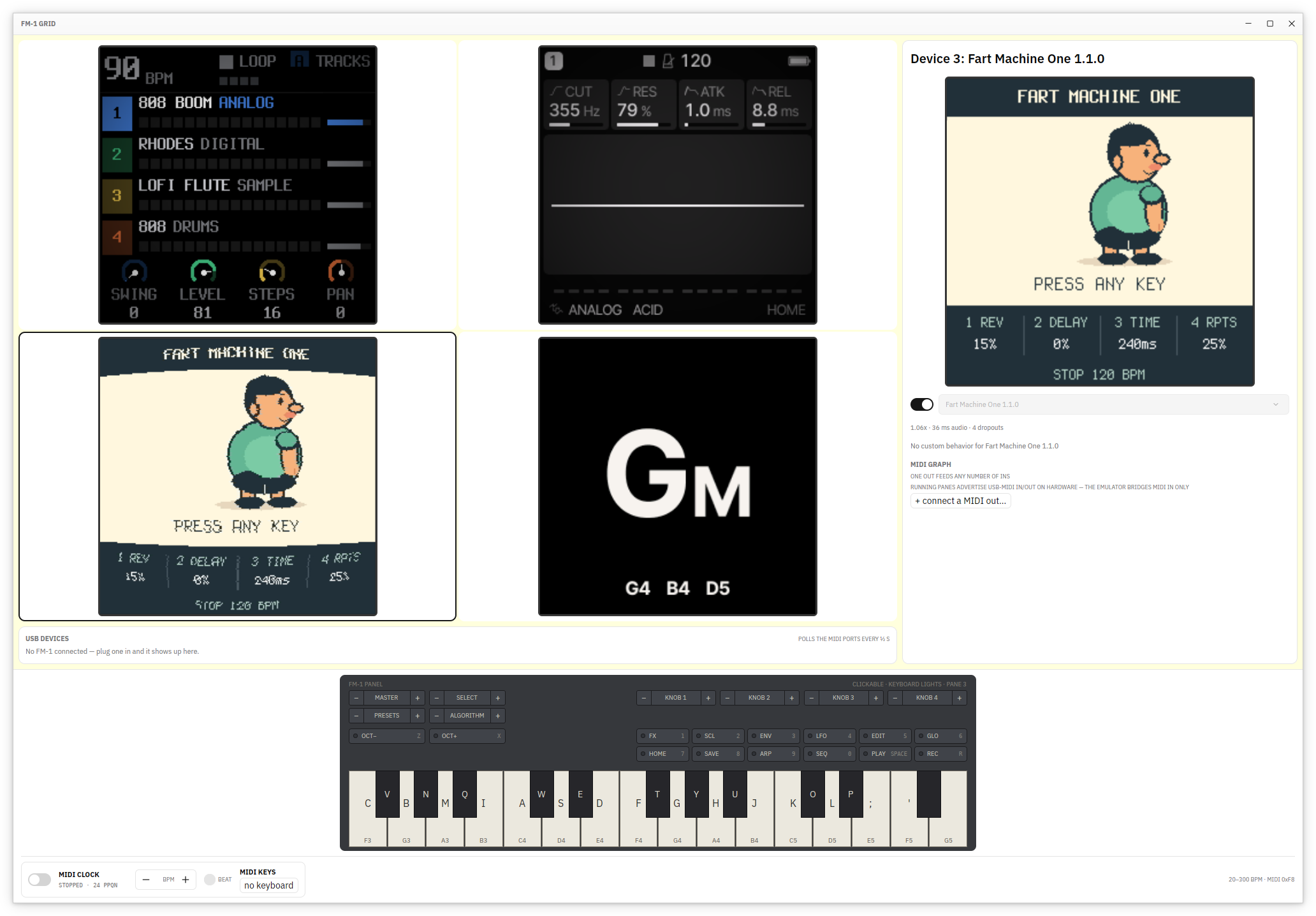
Four emulated M-VAVE FM-1s in a 2×2 grid, each with its own firmware and screen. Built with gpui-kit.
Emulators start off — flip a pane's power switch in the sidebar to start it. Click a pane to send your keyboard there; the selected card gets a colored border.
Grid cards show the screens at 1x (240×240), snapping to 0.5x when the window gets small; the selected card's screen gets a slight fisheye bulge. The selected pane's screen also appears in the sidebar, hqx-upscaled 2x (4x on big windows), falling back to nearest-neighbour while the pane's dropout health is orange or worse. The grid/sidebar split is draggable, with the sidebar kept wide enough for at least 1x. The grid background follows the main colour of the selected screen (resampled once a second, faded over 500 ms). The sidebar's firmware selector shows the library entry's name and version, not the package's file name. The Devices tab has its own pill tabs on top, centered: Devices (the live USB units) and MIDI Graph. The app remembers which one you picked, like the main tab. Both lists scroll, and PageUp/PageDown/Home/End work there like they do in the Library.
The large FM-1 front panel at the bottom of the Emulator tab mirrors the active pane: click its keys and buttons, turn knobs with the −/+ ends, and watch its LEDs follow the firmware. The computer keyboard plays the pane while that tab shows; a configured MIDI keyboard forwards on any tab. The keyboard and controls follow the selected theme: their colors are derived from the theme's background hue (the panel stays dark, even in a light theme), a held key takes the theme's accent color, and the button lights take the theme's warning color (success color for PLAY). The panel tracks the window width both ways and reflows its control groups so they stay clear of each other.
A running pane can be pinned (the toggle beside its firmware selector): its flash
contents — the device's settings and project data — are written to disk at power-off
and when the app quits, and come back at the next boot. Pinned panes restore at
startup (still powered off); unpinning forgets the pane's saved flash. Every pane's
firmware selection and pin restore the same way, and removing a firmware from the
Library powers off the panes set to it and re-seats them with a random available
one. The split position, selected tab (and Devices
section), selected pane, metronome tempo, Download All toggle, theme, appearance
override and accent colour restore the same way. State lives in the com.fm1-grid
data directory (~/.local/share/fm1-grid on Linux).
The Library tab lists every firmware the app knows — the bundled set, files you
import, and (online) everything the
FM-1 Firmware Hub offers, downloadable in place. The
listing also folds in fm1-editor.com's firmware page,
Reverbose's FM-1 list,
Reverbose's SMK-37 list and
mutant.cloud:
entries the hub lacks appear with their own links, and entries several sites carry get
the combined tags and the newer side's version and download. SMK-37 firmware comes
from mutant.cloud and Reverbose's SMK-37 list. The hub's own SMK-37 page only links
to each maker's installer, so the app has no package to download there. Each SMK-37
row carries a tag naming the model it is built for — SMK-37 Pro, SMK-37 Elite or
MKE-P37 — and when one firmware ships one package per model, the model is added to
the row's name so the builds stay apart. Computer-side tools
(programs that run on your computer instead of flashing the hardware) are left out
where a listing labels them: Reverbose's tool cards and mutant.cloud's tools. Each
row has a source: tag saying where its download comes from — builtin, hub,
fm1-editor, reverbose, mutant or file — and when a site with a newer version
takes over a row's download, the tag switches to that site. Rows that know their
project's pages get two labelled buttons — Web site and Github — that open
the project's pages in your browser; a row without those links shows the buttons
greyed out. New rows in the
Installed section pop in with a quick spring animation. The filter box at the
top matches space-separated words, each a case-insensitive substring anywhere in a
firmware's name, version, tags, author or description — "f ll gro" finds Felucca.
Clicking a tag pill toggles that tag's words in the filter. Next to the filter box is
a Devices button with a tick for FM-1 and one for SMK-37. FM-1 is on and SMK-37
is off when you start, so the list only shows what the panes can run; tick SMK-37 to
see those builds too. The app remembers both ticks. The emulator cannot run SMK-37
firmware, so those rows cannot be flashed from here — their makers' installers do
that. Each row leads with a favorite button: favoriting is remembered across
restarts, a favorite's pills gain a glyph (★ by default) and every other row the
hollow ☆, and the pill filters the list like any tag. The small arrow beside the
favorite button opens a menu that gives the favorite another glyph: ★, ⮾ (known
as NoThanks), 𓅓 (owl), 𓅃 (falcon) or 𓃱 (giraffe). A favorite with the
NoThanks glyph sorts to the bottom of its section and its row is greyed out, so you can
push a firmware out of the way without forgetting it. Favorite rows float to the top
of their section. The list
draws only the rows on screen, so a big library stays smooth. Items remove (not
builtins), download with progress, and Flash To… a live unit (modal progress +
log) or a powered-off unpinned pane (boots it). The Download All toggle at the
bottom of the list downloads every offer the device filter shows, including upgrades
of rows the hub has a newer version of (bundled or downloaded); Reload beside it re-fetches
all five listings. Download All walks the
list from the top and moves past an item that fails (the item gets one retry when
you flip the toggle off and on, or reload). It is not a poll loop: a sweep runs when
you turn it on, when the online listing refreshes, and when a download finishes,
then it parks. Left on when you quit, it resumes when the app starts and the first
catalog lands. The bottom form imports a
firmware file with a name, version and description.
Run
cargo run --release -p fm1-grid
At startup the panes load the embedded firmwares in list order. Any pane can run any firmware the library has — pick it from the selector in the sidebar. On Linux each running emulator is pinned to its own physical core while cores last. Four emulators at once want four cores; power on only what you play.
Firmware selector
The power toggle and selector for the selected pane sit in a row across the top of the sidebar; the selector stretches to fill the row. The power control is a large toggle button with a power icon. The slot number pill sits on its own at the bottom right of the sidebar. The pane's status (errors, dropped frames, throughput) is on the right of the metronome row. The selector only works while the pane is off — hover it while the pane is on to see why. It is a searchable list of every firmware the library has at hand — embedded, imported or downloaded — grouped by tag. Hovering a choice shows its description; embedded entries also show the file name and SHA-256 hash. A new firmware boots the next time you power the pane on. To add a file of your own, use the Library tab's import form.
The embedded list lives in firmware/firmwares.json and is compiled in at build time.
Manage it with the helper script, then rebuild:
scripts/firmware.sh add ~/Downloads/new-1.0.fwsc "New Firmware" 1.0
scripts/firmware.sh del "New Firmware"
scripts/firmware.sh list
add copies the package into firmware/ and records its hash; del removes both.
The JSON order is the default pane order.
The .fwsc packages are gitignored; the build downloads and hash-verifies any missing
ones on first build, so a fresh clone just works.
Keyboard
The selected pane gets these keys:
| Keys | FM-1 |
|---|---|
A W S E D F T G Y H U J K O L P ; ' | C4 … F5 (key IDs 21–38) |
C V B N M Q I | F3, F#3, G3, G#3, A3, A#3, B3 (IDs 14–20) |
Z / X | octave down / up (IDs 0, 1) |
1 2 3 4 5 6 7 8 9 0 | function buttons (IDs 2–11) |
Space | PLAY / PAUSE (ID 12) |
R | REC (ID 13) |
← / → | PRESETS encoder −/+ |
↑ / ↓ | ALGORITHM encoder −/+ |
, / . | SELECT encoder |
Switching panes releases held keys on the old one, so no note sticks. A powered-off pane ignores keys.
Devices
The Devices tab's first pill lists the live FM-1 units on USB. Each unit gets a big name line — what it runs, plus the dim port facts — with the flash toggle and firmware picker on their own row under it. Flash progress pins to the bottom of the pane while the unit reboots through its loader.
The header's Rescue toggle adds every MIDI port on the system as a flash target, next to the recognized units. That is for a unit so broken it no longer answers to its FM-1 name (stuck in its update loader). If no FM-1 is found but some MIDI device is out there, the toggle grows a warning ring.
MIDI graph
The Devices tab's second pill is the MIDI graph, connecting sources to sinks: system MIDI ports, running panes and live FM-1 units. Every MIDI out gets its own section, always shown: the sinks it feeds are listed under its name, each on its own ruled row with an X button at the left that removes the connection, and the section's Connect dropdown routes another sink. A new connection snaps in with a small spring; a removed one fades away.
flowchart LR
    sys[System MIDI ports] --> pane[Running pane]
    live[Live FM-1 unit] --> pane
    sys <--> live
    pane -.- silent[MIDI out stays silent]
A running pane is a sink only. That is the emulator's limit: the FM-1's TRS jack is MIDI-in alone, and the firmwares' real MIDI path is USB, which the emulated chip cannot enumerate. The graph says so while such a pane runs.
Settings
The gear icon at the bottom of the rail opens the Settings tab. It is a searchable settings page with its own sidebar, like the Settings app on a Mac or iPhone. Under General → Appearance there are three fields: Theme — the color scheme: gpui-kit's Default pair, the bundled sets (BeOS, Hot Dog Stand, Japanese Stationery and Mac Platinum), plus three computed families: Influenza, close to Windows 11's Fluent UI; Meltysand, close to macOS Tahoe's Liquid Glass; and Visualia, a cream (light) / near-black accent (dark) scheme whose front panel is built from the accent too. All three are built at runtime from the Accent color row of circles (the merged Windows 11 and macOS palette; the macOS value wins where they overlap) and the Mode: Auto (follows the OS), Light or Dark. Every theme also names an ordered font list: Comic Sans/Chalkboard for Hot Dog Stand, Segoe UI for Influenza, SF Pro for Meltysand, and so on; the app resolves it to the first family the machine has. The accent row is enabled only while Influenza, Meltysand or Visualia is the theme. Picks apply at once and are saved with the rest of the app state. The page's Reset button puts the theme and mode back to their defaults. The search box at the top of the sidebar finds settings by name or keyword ("dark" finds Mode). A dark-only theme keeps the default light side, and vice versa.
fm1-tty
A smaller version of the app that runs in a plain terminal. It talks to real FM-1 units over USB and has no emulators — a terminal can't draw their screens. It runs the same fm1-performer core as the GUI app, so the library and flashing work the same way.
cargo run --release -p fm1-tty
fm1-tty is its own crate and doesn't depend on the GUI stack at all: it builds about 150 crates where the GUI app builds about 550, so a clean build is much faster:
cargo build -p fm1-tty
The screen has four parts:
- Devices — the live FM-1 units on USB, one row each.
Rtoggles rescue mode: every MIDI port on the system joins the list as a flash target, for a unit too broken to answer to its name. If no FM-1 is found but some MIDI device is, the block's title warnsR: RESCUE?. - MIDI graph — the terminal take on the GUI's graph: every MIDI out in the system
(and every live unit) is a source, with its current links listed under it. One out
feeds any number of ins.
Tabinto it, move with the arrow keys and pressEnteron a link to unroute it or on+ connect…to pick another sink; the same rows are mouse-clickable.m(or theMIDI in:field) picks a physical MIDI keyboard whose notes are forwarded to every connected FM-1. - Library — the firmware list, same as the GUI's Library tab: what came with the
app, what you imported, and (online) what the Firmware Hub, fm1-editor.com,
Reverbose and mutant.cloud offer.
/focuses the filter box above the list; type any words and every row whose name, version, tags, byline or description contains all of them stays.EnterorEschands the keyboard back to the list,Ctrl-Uclears.vopens the device selector: FM-1 is shown by default and SMK-37 is not, exactly like the GUI. Toggle either row withEnter; the field shows the current choice.rre-fetches the online listings.ddownloads the selected firmware. If the hub has a newer version of the selected row (marked with↑, bundled and downloaded rows alike),dupgrades it instead, and the hint at the bottom readsd upgrade.xdeletes the selected firmware. Only rows that can leave the library — imported files and downloaded packages, never the bundled ones — can be deleted, and the hint at the bottom showsx deleteonly for those. Deleting a downloaded package throws its download away too; an imported file stays on disk.atoggles Download All: every offer is downloaded in turn, one at a time, and rows with a newer version on the hub get upgraded, skipping items that fail (flip it off and on to retry them). The title showsALLwhile it runs. It is not remembered between runs.fflashes it onto a plugged-in FM-1 — with rescue mode on, onto any MIDI port (the picker flags those rowsRESCUE:). With more than one target it asks which one. A pop-up shows progress; on failure it stays up untilEsc.
- Metronome — the same MIDI-clock beat as the GUI.
Spacestarts and stops it,-and+nudge the tempo,[and]jump by ten. The light blinks on every beat, and every FM-1 follows the clock.
More keys: Tab cycles the library list, the MIDI graph and the filter box; in the
list, the arrow keys (or j and k) move, PageUp and PageDown jump ten rows, and
Home and End go to the ends. q quits from the list or the graph; Ctrl-C quits
anywhere.
On terminals that support it (Windows Terminal, Ghostty, Konsole, WezTerm, …),
downloads drive the terminal's own progress bar (OSC 9;4) and library additions and
removals raise desktop notifications (OSC 9). Inside tmux these need
allow-passthrough.
Metronome
Starts off; the rocker switch starts and stops it. While running it sends a MIDI clock (24 PPQN) to every emulator, with MIDI Start/Stop on switch on/off. Tempo is 20–300 BPM — the slider beside the field and the −/+ steppers apply at once; a typed value is free-form while you edit (a bad draft paints the field's error border) and applies on Enter or when the field loses focus, clamped into range (unparsable text snaps back to the live tempo). The slider and the field always show the same tempo: drag one and the other follows. The small light blinks on every beat.
The clock runs on its own thread, independent of the window's frame rate, so timing doesn't drift. Audio from all slots is mixed into one output stream; a stalled slot can't block the others. Each card's status dot reports audio health from the trailing five seconds of dropouts (green → yellow → orange → red) and hides again a second after it recovers.
Building
- Rust 1.91 or newer, stable.
- Linux: ALSA headers (
libasound2-devon Debian/Ubuntu) and the usual X11/Wayland dev packages for gpui. - macOS/Windows: just the platform SDK.
.cargo/config.toml builds with target-cpu=native (this is a local tool) — delete
it if you build for another machine. The emulator crates are pinned to an fm1-emu
revision in Cargo.toml; bump the rev deliberately.
To build on a fast machine and run it on a DevTerm A04 (aarch64, Cortex-A53):
scripts/deploy-devterm.sh                  # fm1-grid: cross-build, copy to ~/bin, Xvfb smoke test
scripts/deploy-devterm.sh fm1-tty          # fm1-tty: cross-build, copy to ~/bin, pty smoke test
scripts/deploy-devterm.sh fm1-tty --no-smoke
DEVTERM_HOST=devterm-a04 DEVTERM_PASS=secret scripts/deploy-devterm.sh fm1-tty
It needs podman and sshpass; it builds the arm64 toolchain container itself.
The firmware images are unmodified packages from
The FM-1 Firmware Hub, M-VAVE and the firmware authors.
They keep their own licences: most are GPL-3.0, M-VAVE's FM1 Stock is Apache-2.0,
FM1 Open adds a linking exception, and Baud Girl (FM-1+VA) is proprietary — its
metadata is bundled but the package itself is not, and the app downloads it from
baudgirl.com on request. The emulator crates are MIT. See
fm1-performer/firmware/README.md.
Layout
Three crates in one workspace: fm1-performer holds the UI-free machinery both apps share, fm1-grid is the gpui-kit app, fm1-tty the terminal UI.
scripts/firmware.sh             add/del/index/baked/list for the embedded firmware list
fm1-performer/build.rs          generates the baked and listing-only firmware tables from firmware/firmwares.json
fm1-performer/firmware/         the embedded .fwsc packages plus firmwares.json
fm1-performer/src/emulator.rs   one thread + SoC + cores per slot, flash snapshot at exit
fm1-performer/src/audio.rs      the per-slot audio queue (the cpal output lives in fm1-grid)
fm1-performer/src/affinity.rs   Linux physical-core detection and per-emulator pinning
fm1-performer/src/hardware.rs   the USB-MIDI scanner and live-unit client
fm1-performer/src/usbmidi.rs    whether a firmware image advertises USB-MIDI
fm1-performer/src/routing.rs    the MIDI graph: sources, sinks, links
fm1-performer/src/clock.rs      MIDI-clock thread, tempo, beat light
fm1-performer/src/midi_keys.rs  a physical MIDI keyboard driving the virtual one
fm1-performer/src/library.rs    the firmware library: model, hub fetch/downloads, persistence
fm1-performer/src/download_heuristics.rs  listing link → package bytes: release/install page resolution, HTML rejection
fm1-performer/src/firmware_picker.rs  what a firmware pick installs or flashes (builtin, file, blob)
fm1-performer/src/store.rs      on-disk objects (JSON) and blobs (desktop dir / localStorage)
fm1-performer/src/builtin.rs    embedded firmware catalogue (generated table)
fm1-performer/src/keys.rs       keyboard layout and panel key tables
fm1-grid/src/app.rs             grid state: pane power, firmware install, key routing, LCD upload
fm1-grid/src/audio.rs           the four slot queues mixed into one output stream
fm1-grid/src/grid.rs            the 2x2 grid of cards (screens snap 1x/0.5x to fit) and the background colour
fm1-grid/src/sidebar.rs         the device sidebar: controls row on top, upscaled screen, pin
fm1-grid/src/devices.rs         the Devices tab's live USB unit rows and the Rescue toggle
fm1-grid/src/graph.rs           the Devices tab's MIDI graph editor
fm1-grid/src/panel.rs           the clickable FM-1 front panel (bottom of the Emulator tab)
fm1-grid/src/transport.rs       the bottom bar: the metronome row, global across tabs
fm1-grid/src/lcd.rs             RGB565 decode, colours, ghost/hqx/nearest image filters
fm1-grid/src/theme.rs           the FM-1 hardware colours, the bundled theme catalog; chrome follows gpui-kit
fm1-grid/src/themes/            the computed accent families and the shared palette
fm1-grid/src/themes/influenza.rs   Fluent-UI family (accent + light/dark)
fm1-grid/src/themes/meltysand.rs   macOS Tahoe family (accent + light/dark)
fm1-grid/src/themes/visualia.rs    cream/near-black family with an accent-built panel
fm1-grid/src/library_tab.rs     the Library tab's list, pills, actions and add-file form
fm1-grid/src/settings.rs        the Settings tab (gpui-kit's Settings component): theme, mode and accent swatches
fm1-grid/themes/                the bundled gpui-kit theme sets (upstream themes/ at the pinned tag)
fm1-grid/src/firmware_picker.rs the firmware dropdown's data (searchable, grouped by tag)
fm1-grid/src/flash_dialog.rs    the modal flash progress + message terminal
fm1-grid/src/session.rs         the saved UI state (split, tabs, pane, tempo, Download All)
fm1-grid/src/main.rs            startup and the quit hook saving slot records
fm1-grid/src/tests/             headless UI smoke tests
fm1-tty/src/                    the terminal UI (ratatui): library + flashing, MIDI graph, metronome