BEETLE
An open-source six-lane tracker and digital drum machine for the M-VAVE FM1.
SikkenWorks · Born out of passion.





Documentation for BEETLE · Release history
The user sample feature is still experimental!
USB MULTITRACK RECORDING + USER SAMPLES
Record BEETLE's six channels separately over USB-C, and play your own samples directly on the FM1.
Both features are experimental and have not been fully validated on physical FM1 hardware.
| 6-track USB recording | Six independent mono tracks, CH1–CH6, at 44.1 kHz / 16-bit into a DAW. Enable HOME → PROJECTS → SETTINGS → USB MULTITRACK → ON. The stems are recorded before global MASTER and Punch-In FX, without mixer pan; switching OFF records the processed stereo master instead. |
| 13 global user samples | Import your own WAV one-shots into U01–U13 with the Project Manager. These samples are shared by all 12 projects and supplement the 14 factory drum sounds. Requires Storage V2 migration. |
| Total sample duration | Approximately 10–20 seconds combined across all 13 slots is the design target, not 10–20 seconds per sample or a fixed guaranteed limit. Small projects may leave room for around 20 seconds (sometimes more); large projects can leave substantially less, or no safe space for new samples. |
| What determines the limit? | The 288 KiB FM1 volume is shared between the 12 saved projects and global samples. Project sizes and compression, existing sample data, previous record generations, sector fragmentation, metadata and the mandatory free-space safety reserve all affect the amount available. |
For scale: BEETLE converts device samples to 22,050 Hz mono, 4-bit BD4S. About 10 seconds need 114 KB and 20 seconds need 227 KB, before additional storage overhead. In software storage tests, a roughly 20-second combined sample bank fits alongside one larger and eleven smaller projects, but 20 seconds does not fit with twelve maximum-size projects. The Project Manager / device storage checks determine what can actually be stored and refuse uploads that would compromise existing data.
Read Global User Samples & Storage V2 and USB-C audio capture for setup, limitations and safety information.
What is BEETLE?
BEETLE turns the M-VAVE FM1 into a standalone, hands-on music workstation. Compose patterns, play the built-in keyboard, design instruments, program drums, arrange songs and perform with live effects, all using the FM1's own controls.
| 6 channels | CH1–CH5: synthesizers · CH6: digital drums with two hits per step, or three when NOTE3 is enabled |
| 48 patterns | 1–16 steps per pattern, with independent channel content |
| Song Chains | 64 song positions with a separate pattern source for each channel |
| Sound engine | Up to eight shared synth voices, six drum voices, 14 built-in drum sounds |
| User samples | 13 additional CH6 one-shot slots (U01–U13), shared across projects after Storage V2 migration; experimental |
| Sound design | Eight active synth instrument patches, 12 selectable oscillator types, two VA oscillator modes, plus eight project-local library presets |
| Performance | Mixer, mute/solo, Punch-In FX, snapshots and mute groups |
| Projects | 12 project slots, TRK1 V26 project format, encrypted .beetle backups and an optional shared Storage V2 volume |
Where to Start
You can learn the workflow in a few minutes using the Web Simulator, or follow the same controls on an FM1 running BEETLE.
- Open the tracker. Press SEQ. This is your main editing screen.
- Choose a channel. Turn SELECT: CH1–CH5 are synth lanes; CH6 is the drum lane. Turning left from CH1 also reaches the recorded Punch-In event lane.
- Pick a pattern. Turn ALGORITHM to choose one of the 48 patterns while stopped.
- Move around the grid. Turn K1 for the step (row) and K2 for the field (column). Turn K3 to change the selected value.
- Enter a sound. With Tracker REC ON, press a musical key to write a note or drum hit. Press REC to toggle note writing; with REC OFF, the keys only audition sounds. Entering a note does not move the step cursor. On CH6, select NOTE2 to enter a second drum hit, or press SEL + FX to swap the FX column for a third independent NOTE3 lane. NOTE3 supports all 14 drums and U01–U13, and is saved together with the project.
- Correct mistakes. SEL clears the selected NOTE / NOTE2 / NOTE3 cell on CH6 independently. ENV inserts a note stop (
[STP]) in the focused note field; it is not the same as clearing the entire step. Use SEQ + OP5 to undo an edit. - Play it back. Press PLAY/STOP. Change the tempo with K4. Stop playback before making structural edits.
- Build the sound and arrangement. Press EDIT for instruments, GLO for the mixer, LFO for master effects, or ARP for Song Chains. In Song Chains, hold SEL and turn K1 to select rows; SEQ + OP1 / OP2 copies/pastes them. Press SEQ to return to the tracker.
- Save your work. Press SAVE, or open HOME → SAVE / SAVE AS to manage a project slot.
FM1 terminology: SEL means the physical SELECT push-button; SELECT in this guide means the rotary encoder. OP1–OP6 are the six mapped black musical keys used with SEQ. The function of some controls changes with the current screen.
HELP chapters
Press HOME → HELP. Turn K2 to browse the thirteen topics. Turn K1 to scroll inside the selected chapter. The scroll position resets at each chapter change, and the bottom counter refers to the current chapter, not the whole manual. HOME returns to Projects and SEQ returns to Tracker. HELP remains read-only; turning the other encoders will not edit your music.
Chapters: Tracker Basics, Pattern Editing, Step Dynamics / Groove, Instrument / Keyboard, Projects, Live FX / Record, Song Chains, Live Mixer / Solo, Mixer / Performance, Master FX, Guide / Navigation, Block Instrument / Delete and USB-C Audio.
CH6 Drum NOTE3 / FX mode
On the tracker select CH6 (DRUM). Press SEL + FX while stopped to switch between FX mode (STEP · NOTE · NOTE2 · KIT · FX) and NOTE3 mode (STEP · NOTE · NOTE2 · NOTE3 · KIT). Press the same combination again to restore the normal FX column.
In NOTE3 mode, choose the NOTE3 cell with K2. Turn K3 to select any of the 14 built-in drum sounds, U01–U13 user samples, empty (---) or note stop (STP). With Tracker REC armed, pressing a drum key enters that sound in the focused NOTE, NOTE2 or NOTE3 cell. None of these key entries advances the step cursor. SEL clears only the focused note cell; ENV sets its own STP. Each lane can hold an independent hit on the same step, sharing the existing six drumvoices.
While NOTE3 mode is enabled, the existing CH6 step-FX entries remain saved in the project but are not played. Switching back to FX mode restores their settings without erasing them. The NOTE3 ON/OFF state and all NOTE3 events are saved with each project in the TRK1 V26 format. Compatible older project files load with NOTE3 off and empty. Firmware that does not support V26 cannot load these projects; back up both projects and the global sample bank before downgrading.
Global User Samples & Storage V2 (experimental)
BEETLE has 14 built-in digital drum sounds and 13 global one-shot slots, U01–U13, assigned to CH6 drum note IDs 14–26. The global bank is separate from individual .beetle projects: on a compatible FM1, the same user samples are available to all twelve projects. Playback uses the existing six drum voices, not extra synth voices. Global samples require a successfully migrated Storage V2 volume; firmware installation alone does not convert legacy A/B storage.
The BEETLE Project Manager includes a GLOBAL SAMPLE LIBRARY. Open or build a .beetlebank, import/replace/delete WAVs in U01–U13, and SAVE GLOBAL LIBRARY to keep your original WAV files in a portable computer backup. On a connected Storage V2 FM1, choose UPLOAD PC WAVs · KEEP OTHER FM1 SLOTS to transfer only the WAV slots you have loaded locally. The manager converts device-bound WAVs to BEETLE's 22,050 Hz mono, 4-bit BD4S format and verifies their transfers. The .beetlebank computer-file limit is not the FM1's capacity; available sample duration depends on occupied flash space and the twelve projects. A full volume rejects new writes instead of silently replacing saved data.
Sample inventory on reconnect: The Project Manager scans all 13 device sample slots read-only on connection. It distinguishes STORED ON FM1 from PC WAV NOT LOADED. Empty PC slots do not delete samples on the device. Only locally loaded WAVs can be uploaded, and replacing an occupied FM1 slot requires confirmation. Use DELETE ON FM1 with backup acknowledgment to remove an individual device sample. Uploads are blocked if the device inventory cannot be read. The device protocol reports slot occupancy, byte count and CRC/generation; it does not provide the original WAV or its 3-character tracker label. Keep a .beetlebank backup of your source WAVs.
Migrating an existing FM1 to Storage V2
- Back up your projects first. Save any existing
.beetleand.beetlebankfiles on your computer. Keep a separate, independently verified firmware/flash recovery option. - Connect an FM1 with Project Transfer protocol V5 and a compatible BEETLE firmware to the Project Manager using a USB data cable and supported USB-MIDI browser permissions. Choose CHECK STORAGE STATUS.
- If LEGACY A/B is reported, use CONVERT STORAGE TO V2. The manager scans all twelve slots, exports their encrypted project backups to a ZIP, and requires you to verify that ZIP really exists on your computer before confirming the destructive conversion.
- The Manager checks the original slot fingerprint, initializes only the BEETLE project/sample flash volume, restores the backed-up projects as TRK1 V24 for this migration procedure, reads them back and verifies all twelve slots. Do not disconnect the FM1 or interrupt power during conversion.
- If restoration is interrupted after a successful V2 initialization, use RESTORE V2 BACKUP ZIP or import the backed-up
.beetlefiles into their original slots. Do not reformat again just to retry restoration. - Once STORAGE V2 READY is confirmed, transfer U01–U13 using STORE U01–U13 ON FM1, then select those notes from CH6.
Important: Storage V2 conversion erases the previous BEETLE-owned project volume before restoring the projects and is not an atomic or power-loss-safe migration. A failed conversion can leave some or all projects unavailable until they are restored from a computer backup. Firmware recovery, physical flash/USB behavior and sample playback under heavy load have not been fully validated on an actual FM1. See docs/V1424-STORAGE-MIGRATION.md and docs/V1422-GLOBAL-SAMPLES-NATIVE-RELEASE.md.
Project-reserved sample capacity meter
The Project Manager includes an FM1 SAMPLE SPACE bar. With firmware supporting the read-only 0x76 capacity command, it displays stored compressed sample bytes, an estimate of remaining flash pages and a 32 KiB (eight-sector) project reserve plus a 16 KiB (four-sector) recovery guard. On supported firmware, sample uploads are refused during preflight when those reserves would be violated. These reserves are not a guarantee that every future maximum-size project will fit; project size, journal generations, fragmentation and flash wear affect available capacity.
If the firmware does not support the read-only capacity command or project-reserve enforcement, the Manager displays NOT VERIFIED instead of estimating free space. Its sample inventory and explicit replacement controls may still work, but filling the sample bank can leave insufficient room for project saves. Update firmware only with a verified recovery method. The .beetlebank computer-file size is separate from the FM1 flash limit.
USB-C audio capture: stereo or six-track mode (experimental)
Connect the FM1 with a USB-C data cable. On Windows, open Settings → System → Sound → Input or the audio input selector in a recording application and choose BEETLE Audio (device naming depends on the operating system). Set the recording format to 44,100 Hz, 16-bit; use stereo for USB MULTITRACK OFF or six mono inputs for ON when the host DAW/driver supports them. Start playback on the FM1 and recording on the computer. The computer initiates the USB audio stream; there is no extra on-device enable switch. The stream taps BEETLE's final master stereo signal, including the master volume, and leaves the analog output and USB-MIDI path present.
USB-C audio is audio from FM1 → computer, not computer → FM1. It is not USB screen capture, audio-file transfer or USB mass storage. Multitrack ON provides six independent mono channels before global master processing; OFF captures the stereo master. The WebSimulator produces local browser audio and does not act as a physical USB audio device.
The USB audio endpoint and associated ISR originated from Felucca. BEETLE provides 44.1 kHz USB Audio Class 1 stereo and six-channel capture paths with clock-drift handling. Both modes remain experimental: compiling and software testing do not prove correct host enumeration, sample-accurate recording or freedom from audio DMA deadline misses on the physical FM1. If the BEETLE Audio device does not enumerate, do not assume changing a computer driver will fix the firmware. See docs/V1.2-AUDIO-VALIDATION.md.
Build the distributed USB-audio configuration with:
export JIELI_TOOLCHAIN=/path/to/jieli-linux-toolchain
python firmware/fm1-native/build.py --beetle-storage-lab --updater --usb-audio --beetle-v2
The distributed .fwsc retains the protected boot header and OTA loader, and reports the established FM-1_2123 identity. Storage V2, sample transfer and USB audio remain experimental; a working independent recovery route and physical FM1 validation are required before treating it as safe for everyday use.
Audio safety and safe editing
Important USB exception: the optional six-channel multitrack USB mode exports dry, pre-MASTER stems. The physical MASTER controls the analog/stereo master path but does not control the level of those individual USB stems in a DAW. Control and monitor multitrack gain in the DAW to avoid summing six unattenuated channels into an unexpectedly loud output.
Do not copy, paste or perform heavy editing while playback is running. Stop playback before editing the drum lane or a large Song Chain. Operations that could block the audio interrupt are restricted during playback.
Hardware MASTER is read from the FM1 potentiometer in the foreground. The DAC audio interrupt uses that reading as a final output ceiling. An invalid or stale reading (over 80 ms) mutes digital output. A missed audio DMA deadline disables the analog output and latches AUDIO STOP. This behavior deliberately favors silence over distortion; audio does not restart automatically. After lowering MASTER and disconnecting sensitive listening equipment, hold HOME + PLAY for one second to manually rearm. If a project crackles, stops or becomes unexpectedly loud, discontinue playback, restore a known-good firmware and report the incident. These safeguards have not been verified on the physical FM1.
Loading and deleting a project
On the startup NEW PROJECT / LOAD PROJECT selector, use K1 to select LOAD PROJECT, then press and release SEL on its own. In the subsequent 12-slot LOAD PROJECT list, highlight an occupied slot with K1 and hold EDIT + SEL to open DELETE PROJECT?. The confirmation defaults to NO; select YES with K1 and make a fresh SEL press to confirm, or press HOME to cancel. The global U01–U13 sample library is not part of a single project-slot delete.
FM1 Controls
Buttons
Every dedicated button is listed here with its role in BEETLE.
| FM1 button | What it does in BEETLE |
|---|---|
| FX | Opens Per-Step FX for the selected step. Press again to reach Punch-In FX. In the Performance screen, opens Mute Groups. |
| SEL | In the tracker, clears the selected step on release. Elsewhere it confirms a choice, toggles an option or applies the screen's highlighted action. Hold it and rotate K1 in the tracker to select a range. |
| ENV | Stops the selected note by writing [STP] in the focused NOTE or drum NOTE2 field. This is a note-stop command, not full step deletion. |
| LFO | Opens MASTER FX: EQ, compressor and reverb. |
| EDIT | Opens the Instrument Editor. Press again to reach the drum component editor where applicable. |
| GLO | Opens or closes the regular Mixer. |
| HOME | Opens Projects for New, Save, Load, Help and related tools. Hold HOME to open the Scale Guide. |
| SAVE | Opens the project save workflow or saves the current named project. |
| ARP | Opens Song Chains. When SONG is enabled, pressing ARP from Song Chains opens the Live Mixer; pressing again returns to Song Chains. |
| SEQ | Returns to the Tracker and acts as the modifier for editing shortcuts. |
| PLAY/STOP | Starts or stops playback. When SONG is enabled, playback follows the Song Chain. |
| REC | In Tracker and ordinary screens, toggles note/step writing (default ON); OFF still auditions without writing. In Step FX / Punch-In FX, independently toggles Punch-In recording for held performance effects. Leaving those FX pages ends Punch-In recording without changing Tracker REC. |
| OCT− / OCT+ | Changes the live keyboard octave (−4 to +3) when no saved note/range is being edited. In Tracker with playback stopped and REC disarmed, transposes the focused synth note or selected range by ±12 semitones. On Song Chains, removes/adds a song position. Other screens may assign contextual actions. |
Rotary encoders
| Encoder | Primary function | Other important uses |
|---|---|---|
| SELECT | Choose CH1–CH6 in the Tracker; rotating left from CH1 also reaches the recorded Punch-In event lane. | Choose MASTER FX blocks or drum components on their respective screens. |
| ALGORITHM | Select patterns 01–48 in the Tracker. | SEQ + ALGORITHM shifts the selected lane's steps up/down while stopped. |
| PRESET | Cycle a focused NOTE through note / [---] (empty) / [STP] (stop). | On CH6 NOTE2, cycles its second-hit value, empty and stop states. |
| K1 | Move vertically through tracker steps. | Hold SEL + K1 to mark a tracker step range or a Song Chain row range; adjust an active Punch-In effect parameter while its key is held. |
| K2 | Move horizontally between tracker fields. | Select columns, parameters and Song Chain sources. |
| K3 | Change the focused tracker value. | Edit the selected parameter in most BEETLE editors. |
| K4 | Change tempo (BPM). | SEQ + K4 sets pattern length while stopped; contextually selects project slots or adjusts a MASTER FX parameter. |
Punch-In parameter note: Hold an effect key and use K1, not ALGORITHM, to adjust its parameter. Tracker-note REC and Punch-In REC are separate states. The REC LED indicates the mode being controlled. In Song Chains, keyboard LEDs indicate notes or drum triggers for the selected channel. Physical FM1 behavior remains subject to hardware validation.
Musical keys
| Where | What the keyboard does |
|---|---|
| Tracker / CH1–CH5 | With Tracker REC armed, enter synth notes even if another column has focus; existing instrument/chord/FX fields are preserved. With REC OFF, audition only. |
| Tracker / CH6 | With REC armed, enter a drum in NOTE1, or a separate second hit (factory drum or U01–U13) when NOTE2 is focused. The original 14 factory hits are retained; U01–U13 (drum IDs 14–26) require the experimental global Storage V2 sample bank. REC OFF auditions without writing. |
| Instrument Editor | Audition the selected synth patch without adding tracker notes. |
| Drum Editor | Audition the selected drum component. |
| Mixer / Live Mixer | The six assigned black keys mute CH1–CH6; their six corresponding white keys solo CH1–CH6. LEDs reflect active mute/solo states. |
| Punch-In FX / Punch-In REC armed | The eight white keys mapped to the currently displayed effect page illuminate. Play or hold the mapped FX key to trigger its effect; release it to end the held effect. Punch-In recording is separate from Tracker note recording. |
Editing shortcuts
These combinations apply in the Tracker unless another screen is specified. Most destructive editing requires playback to be stopped.
| Hold / press | Result |
|---|---|
| SEQ + OP1 | Copy the current lane, or the selected step range if a range is active. |
| SEQ + OP2 | Paste the copied lane or range at the appropriate destination. |
| SEQ + OP3 | Copy the complete six-channel pattern and recorded Punch-In events. |
| SEQ + OP4 | Paste the complete pattern and Punch-In events. |
| SEQ + OP5 / OP6 | Undo / Redo. The available undo history lives in RAM. |
| Hold SEL + turn K1 | Select an inclusive range of tracker steps for copy/paste, deletion, instrument changes and octave transposition. In Song Chains, select contiguous song rows instead. |
| SEQ + SEL | Open Block Editing (Tracker), or Performance Snapshots (Mixer). |
| SEQ + FX | Open Step Dynamics (velocity and gate). |
| SEQ + ENV | Open Step Groove (microtiming, ratchets and probability). |
| SEQ + OCT− / OCT+ | Transpose the saved synth note at the cursor down/up one octave, with preview. |
| SEQ + K4 | Change the current pattern length (1–16 steps) while stopped. |
| SEQ + ALGORITHM | Rotate the selected channel's step data upward/downward while stopped. |
| SEQ + EDIT | Open the eight-slot Instrument Library from the Instrument Editor. |
| Song Chains: SEQ + OP1 / OP2 | Copy / paste the selected Song Chain row or inclusive range, with Undo support and the 64-position limit. |
| Tracker: OCT− / OCT+ | With playback stopped and REC disarmed, transpose the note under the cursor or all notes in the selected range by an octave; leave empty and [STP] steps unchanged. |
| SEQ + rightmost black key (F#5) | Open CLEAR CURRENT LANE. K1 selects YES/NO, SEL confirms; HOME cancels. Erases only the current channel in the current pattern; supports Undo. |
| OCT− + OCT+ in EDIT | Toggle instrument MONO/POLY without changing keyboard octave. |
The Main Screens
Tracker
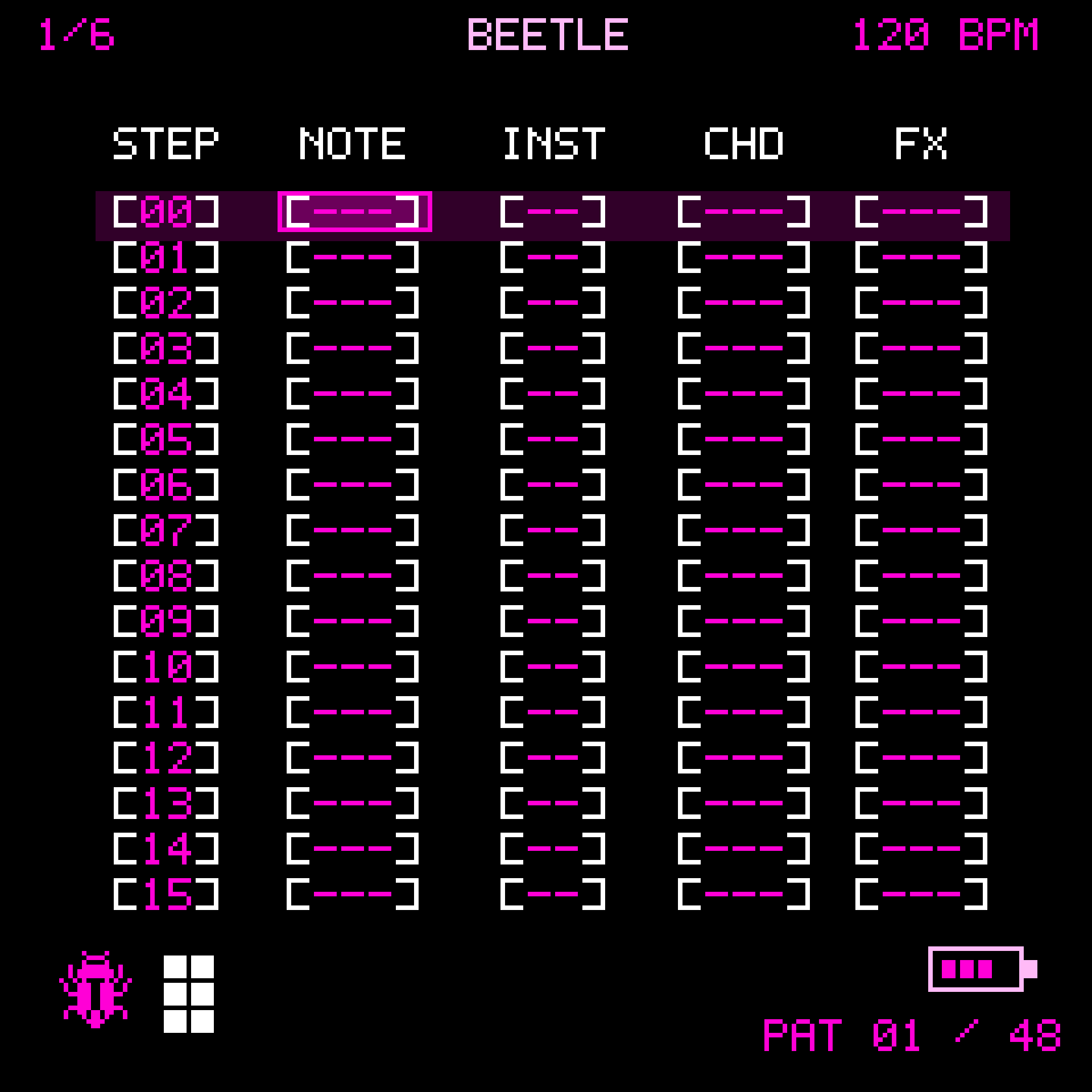
Each pattern holds up to 16 steps for each of six lanes. The highlighted cell is edited with K1/K2/K3; with Tracker REC armed, the keyboard enters notes. REC OFF auditions sounds without altering the pattern. [---] means no new note, while [STP] ends a sounding note. CH6 has independent NOTE1 and NOTE2 drum hits and their own step FX, with thirteen additional U-slots available after global sample-bank setup. Hold SEL + K1 to select a range for copying, editing, deletion or transposition. Use FX for effects and SEQ + FX / ENV for step dynamics and groove. The tracker and Song Chain playhead have incremental LCD updates intended to keep the highlighted step synchronized; physical LCD/audio-load validation is still pending.
Chord audition: On CH1–CH5, enter a root note, select CHD with K2 and turn K3. Each chord is immediately auditioned using the step instrument and current keylock settings, without adding extra notes or changing playback. It is silent during PLAY and on empty/STOP notes or CH6; MONO mode remains single-voice.
Instrument Editor and Library
Press EDIT to adjust synth types, oscillators, envelopes, filters and patch settings. BEETLE includes VA, SID-inspired and NES-inspired sound types. Instrument settings are independent across eight active patch slots. In EDIT MONO, the keyboard uses last-note priority and returns to an earlier still-held note after release. The Instrument Library (SEQ + EDIT) keeps eight named patches inside the current project; STORE, LOAD, COPY and RENAME use K1 for slot, K2 for action, K3 for active instrument, K4 for copy destination and SEL to execute. Save the project to preserve library changes.
Mixer and Live Mixer
Press GLO for the regular six-lane mixer: volume (0–120%), pan, mute, solo and swing. K1 selects a lane, K2 selects its parameter and K3 edits it. SEL toggles quantized mutes. With quantization enabled, mute changes during playback take effect at the next pattern boundary; otherwise they are immediate. New projects start with synth lane volume 50%, drum lane volume 80% and regular-mixer quantized mutes OFF.
The Live Mixer is separate and only available when SONG is ON. Its mute/solo changes are temporary performance overrides, not edits to the persistent mixer. OCT− toggles live quantized mute and OCT+ toggles live quantized solo independently; both default ON. Its mapped black keys mute lanes and the matching white keys solo them.
From the regular Mixer, SEQ + SEL opens four Performance Snapshots (K1 slot, K2 save, K3/SEL recall). Press FX there to enter Mute Groups: K1 chooses one of four groups, K2 chooses its member lane, SEL adds/removes membership and K3 toggles the whole group. Both features follow the mixer's quantization behavior during playback.
MASTER FX
Press LFO for the master effects chain. Turn SELECT to focus EQ, Compressor or Reverb; turn K1–K4 to adjust the block's four parameters; press SEL to enable/disable it. Hold SEQ and turn K4 to change processing order. Master effects apply to the overall output.
Punch-In FX
The keyboard LEDs illuminate the eight white keys assigned to the currently displayed Punch-In FX page. Switching pages switches the lit effect bank. Pressed FX keys stay indicated.
Press FX to move between Per-Step FX, PUNCH-IN 1/2 and PUNCH-IN 2/2. The first eight white keys trigger the first effect bank; the next eight trigger the second bank, regardless of which page is visible. Pressing an FX key shows its page. When several keys are held, the most recently pressed effect takes display focus; releasing it returns focus to the latest still-held effect. Hold a key and turn K1 to adjust its setting. REC on either Punch-In page arms performance-FX recording separately from Tracker note recording.
| Page | Effect | Behavior / K1 parameter |
|---|---|---|
| 1/2 | REPEAT | Loop captured audio; K1 adjusts fragment length. |
| 1/2 | RING MOD | Ring-modulate the mix; K1 controls intensity. |
| 1/2 | FILTER | Live filter; K1 adjusts frequency/character. |
| 1/2 | TAPE STOP | Slow and pitch-drop a captured fragment; K1 changes the slowdown duration. |
| 1/2 | STUTTER | Rhythmic audio gate; K1 selects the tempo-related rate. |
| 1/2 | OCT UP | Temporary pitch-shift up; no K1 parameter. |
| 1/2 | OCT DOWN | Temporary pitch-shift down; no K1 parameter. |
| 1/2 | MUTE | Temporarily mute the mix; no K1 parameter. |
| 2/2 | CRY | Bidirectional transport of a short frozen audio fragment; K1 changes the scratch movement. Not a long-record scratch. |
| 2/2 | BITCRUSH | Reduce effective PCM bit resolution; K1 adjusts crush depth. |
| 2/2 | PUMP | BPM-linked sidechain-style level modulation; K1 selects rhythmic rate. |
| 2/2 | GLITCH | Jump between short, deterministic fragments of captured audio; K1 adjusts fragment size/chaos. |
| 2/2 | WOW | Tape-like pitch/speed fluctuations; K1 adjusts modulation amount. |
| 2/2 | PHASER | Moving phase/notch-style coloration; K1 adjusts sweep speed. |
| 2/2 | RADIO | Lo-fi radio-like bandwidth and distortion; K1 changes intensity. |
| 2/2 | DJ ISOLATOR | Performance EQ/kill-style filtering; K1 selects frequency emphasis. |
Buffer sharing: REPEAT, TAPE STOP, CRY and GLITCH use the same bounded frozen audio history. Only one of these snapshot readers can own it at a time; other lightweight effects may be layered where CPU permits. The available snapshot is only approximately 128 ms. This does not provide full-length audio REVERSE; no such feature is claimed.
All thirteen adjustable Punch-In settings (five on page 1/2 and eight on page 2/2) are saved with the project. With Punch-In REC armed during playback, BEETLE can record effect holds and parameter changes. Leaving the FX page disarms Punch-In capture without affecting Tracker note recording. Supported older project data remain readable; recorded Punch-In data is saved in the current project format.
Song Chains
Press ARP to arrange patterns into a complete song. A song has up to 64 positions. Each position can draw each of its six channels from a different pattern: CH1 CH2 CH3 CH4 CH5 DR REP. Newly inserted rows inherit the previous position's six source assignments and repeat setting; the first position initially references P01. Automatically empty source lanes display -- until content is entered, but a manually chosen -- remains an explicit mute.
| Control | In Song Chains |
|---|---|
| K1 | Select song position (POS 01–64); hold SEL while turning K1 to select a consecutive row range. |
| K2 | Select source column (CH1–CH5, DR or REP). |
| K3 | Choose source pattern 01–48, -- for a silent channel, or repeats 1–16 in REP. |
| OCT+ | Insert a new song position. Each channel defaults to the pattern matching that position (POS above 48 defaults to P48). |
| OCT− | Delete the selected song position. |
| SEL (short press) | Clear an existing song-row selection; without a selection, toggle SONG ON/OFF. |
| SEL (hold 650 ms) | Toggle SONG LOOP ON/OFF. Hold SEL while rotating K1 to select a range instead, without toggling SONG LOOP. |
| PLAY | Loop exactly the selected song-row range if present (even when SONG LOOP is OFF); otherwise play the full song using the SONG LOOP setting. |
| ARP | With SONG ON, switch between Song Chains and Live Mixer. |
| SEQ + OP1 / OP2 | Copy / paste a selected Song Chain row or contiguous row range; paste begins at the current row. |
Song-row selection: Hold SEL while turning K1. Selected rows are highlighted in magenta, with a pink cursor outline matching tracker step selection. The selection can run forwards or backwards. PLAY loops only the selected rows and respects each row’s REP value; STOP keeps the range selected. A short SEL press clears the selection. With no selected range, PLAY returns to normal full-song behavior.
Example: POS 02 can play CH1–CH5 from P02 while DR uses P01. The source patterns remain unchanged. Shorter source patterns loop within the song position. Recorded global Punch-In events use the CH1 source pattern; setting CH1 to -- also silences those events for that position. An explicit -- releases active synth notes at the next position boundary, or fades/chokes the CH6 drum tail. Selecting a numbered, empty pattern is different: it can allow the previous note's sustain to continue.
Projects and Project Manager
Press HOME to access NEW, SAVE, SAVE AS, LOAD, HELP and the other project tools. There are 12 project slots. A project stores patterns, song arrangements, instruments and their library, drums, mixer settings, effects and performance settings. The project schema is TRK1 V26. Supported older project files can be read and, using the Project Manager, converted with authenticated backup and readback checks. TRK1 V26 is a project-file format; Storage V2 is a separate, opt-in reorganization of the flash volume. Firmware without V26 support cannot load V26 project files. Back up projects before downgrading.
The BEETLE Project Manager can import/export encrypted .beetle projects, inspect twelve physical slots, convert supported older project formats and maintain the separate global .beetlebank sample library. AES-GCM project-container encryption uses a shared key included in the open-source tools: it detects tampering and discourages casual inspection but does not protect against determined decryption. Device operations require compatible Project Transfer firmware; Storage V2 conversion and restoration require protocol V5. Physical USB transfer, conversion and sample playback have not been fully validated on hardware.
Bulk project backups: Use EXPORT PROJECTS ZIP to save every occupied project slot together, or IMPORT PROJECTS ZIP to restore them to their recorded slots. The ZIP contains individual encrypted .beetle projects and a verification manifest. The Manager validates the complete archive and requires explicit confirmation before overwriting existing projects. Import is sequential rather than atomic: do not disconnect during transfer, and verify every restored slot. Bulk ZIP currently supports the Manager’s store-only ZIP format. These project ZIPs do not contain the global U01–U13 sample audio; use the separate .beetlebank workflow to back up your sample library. Single-slot .beetle import/export remains available.
Storage and firmware safety: On-device flash capacity is finite; a completely filled 48-pattern project or thirteen long samples may not fit. Storage V2 migration explicitly erases the BEETLE-owned 0x97000–0xDFFFF partition after a verified project backup, then restores projects. It is not power-loss atomic, and older ETCH/Felucca user storage within those sectors could be lost. Obtain a verified full-flash backup and a working independent recovery method before destructive storage or firmware updates. The WebInstaller does not make a full device backup, and successful checksums do not guarantee safe boot, DMA behavior, a successful Firmware Hub switch or reliable recovery. BEETLE retains guarded outgoing OTA checks for selected Felucca-family loaders, not unrestricted cross-firmware flashing.
For setup and build instructions, see docs/START-HERE.md. For version history and release-specific changes, see CHANGELOG.md.
Support
For a bug report, include your BEETLE firmware version, the screen and buttons involved, steps to reproduce, and relevant project details. Share diagnostic logs only when safe; do not upload a private full-flash dump publicly. Contributions should preserve real-time audio safety, backward compatibility and third-party attributions.
Credits and Licences
BEETLE is developed by SikkenWorks (Joppe Sikken). It builds on earlier open-source FM1 work and is not a clean-room firmware. The following credits and licence distinctions are part of the project and must be retained.
| Project / contributor | Contribution and licence relationship |
|---|---|
| Felucca · Leo Kuroshita (@kurogedelic), Hügelton Instruments | Original FM1 hardware abstraction, startup/linker foundations, LCD, input scanning, audio and boot/OTA infrastructure, and the original FM1 battery-level code used by BEETLE. Battery ADC level classification and voltage boundaries (531 / 561 / 591) derive from Felucca ui_draw.c, batt_level(). GPL-3.0-only. The SHA-256 audit in reference/felucca-hal-sha256.json verifies 19 listed critical files only, not identity of the entire firmware. |
| ETCH · SikkenWorks | Earlier FM1 firmware supplying the working ETCH V1.37 firmware-container/bootloader reference and lineage for some native, flash/OTA, UI and hardware-support modules. The BEETLE tracker, digital drum instruments and project workflow are BEETLE-specific. The protected bootloader remains unchanged and may show inherited branding. |
| JieLi Technology | Manufacturer of the AC79-series target chip and associated toolchain/device SDK. Applicable JieLi and upstream notices continue to apply; third-party compiler toolchain binaries are not bundled. |
| reSID · Dag Lem | Original creator of reSID, a MOS6581 SID emulator and technical inspiration for BEETLE's five SID-style instruments: SID 6581, SID 8580, SID DIRTY, SID BASS, SID NOISE. Original reSID C++ source is not bundled, compiled, linked or executed. BEETLE's lightweight implementation is SID-inspired, not cycle-accurate reSID emulation. |
| Nes_Snd_Emu · Shay Green (blargg), fork maintained by James Athey | NES APU technical reference for BEETLE's NES PULSE, NES TRIANGLE and NES NOISE types. Upstream library: LGPL-2.1. BEETLE implements an independent, lightweight fixed-point C engine in firmware/fm1-native/beetle_nes_apu.h. Original Nes_Snd_Emu C++ code is not copied, embedded, compiled or linked and this is not cycle-accurate NES APU emulation. See LICENSES/NES-SND-EMU-LGPL-2.1.txt. |
Battery indicator attribution. BEETLE uses battery-level detection logic originating from Felucca, authored by Leo Kuroshita (@kurogedelic), Hügelton Instruments, under GPL-3.0-only. The original batt_level() implementation in ui_draw.c defines the FM1 ADC voltage-level boundaries 531 / 561 / 591. BEETLE BLUE provides the adapted visual presentation, input filtering and invalid-reading indication used by BEETLE. The displayed bars represent approximate voltage ranges, not calibrated battery charge percentages or verified charging status. The Felucca source and licensing attribution must be preserved in all redistributions.
Additional upstream attributions. The preserved LICENSES/FELUCCA-LICENSING.txt acknowledges DaisySP (Electrosmith / Emilie Gillet, MIT), Rings (Emilie Gillet, MIT), msfa/Dexed (Google / Pascal Gauthier, Apache-2.0), CrispyZebra, Fukiai, Inter Tight, DotGothic16, Versilian Studios VSCO-2, klattsch and X0X. These are attributions within the broader upstream project; BEETLE does not claim to include all of those engines, fonts or sound assets.
Artwork. The enlarged two-frame pink loading illustration derives from artwork supplied by the BEETLE project user and uses nearest-neighbour pixel scaling without an external icon-font dependency.
Source licence and redistribution. BEETLE's native firmware and derivatives are distributed under GNU GPL v3 only (GPL-3.0-only), preserving the licence of the Felucca-derived source. The full text is provided in LICENSE. When distributing modified firmware, provide the complete corresponding source and applicable copyright, SPDX and upstream licence notices. A binary, WebInstaller or bootloader alone does not satisfy source-offer obligations. For detailed file-level provenance and third-party notices, see docs/CREDITS-AND-LICENSES.md, LICENSES/FELUCCA-LICENSING.txt and the source-file headers. Where lineage is uncertain, retain upstream notices rather than claiming exclusive authorship.
BEETLE · SikkenWorks · Born out of passion.